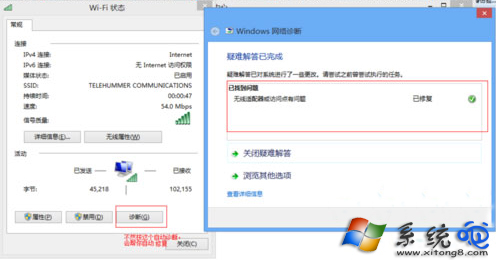
「無線網路適配器或存取點有問題」診斷結果。最快解法:網路連線介面卡右鍵 → 診斷,Windows 自動掃描修復驅動綁定、DHCP、DNS、IPsec 等常見問題。
ncpa.cpl
netsh winsock reset
netsh int ip reset
右鍵診斷一鍵自動修復,適配器未連線問題 80% 現場解決!
Win10 開機提示「裝置處於離線狀態」?改用本地帳號登入即解
AutoCAD 鏡像指令教學:選取物件、指定鏡像線、快速建立對稱圖形
Windows 10 Build 10061 內部人員成就獲取教學:開啟會員中心即解鎖
Windows 10 啟動失敗錯誤 0xC004C003 解決方案:KMS 啟用與跳過金鑰安裝
Win10 開啟/關閉測試模式:bcdedit 指令控制驅動程式強制簽名
Win10 如何關閉輸入法語言列?新版語言列設定完整教學
Win10 螢幕變紅/紅屏三大解決方案:顯卡驅動、監視器驅動、色彩校準
Win10 內建郵件應用支援 TLS 協定,預設仍啟用 SSL