Windows 10 鎖定畫面預設為 Windows 聚焦 (Windows Spotlight) 每日輪換美景,亦可自訂為喜愛照片。
操作步驟
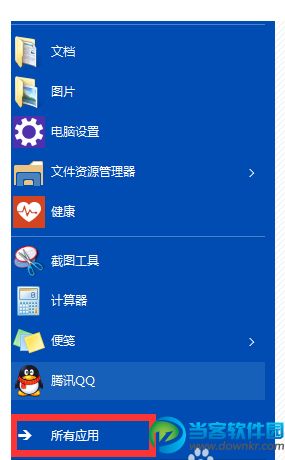
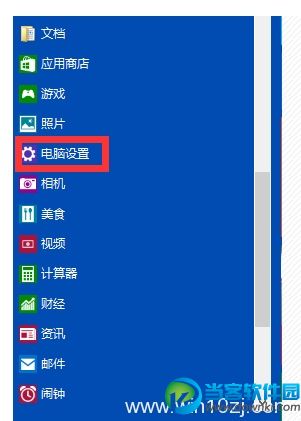
- 「開始」→「設定」→「個人化」
- 左側選單選擇「鎖定畫面」
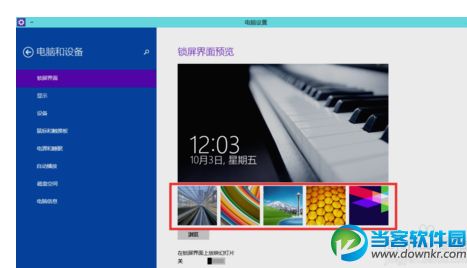
- 背景下拉選單三種模式:
- Windows 聚焦:自動從網路下載高品質圖片(預設)
- 圖片:選擇單一本地圖片
- 幻燈片放映:選擇資料夾循環播放
- 選擇「圖片」或「幻燈片放映」後,點擊「瀏覽」選擇本地照片/資料夾
- 可開啟「在登入畫面顯示鎖定畫面背景圖片」保持一致風格
進階技巧
- 鎖定畫面圖片儲存位置:
%LocalAppData%\Packages\Microsoft.Windows.ContentDeliveryManager_cw5n1h2txyewy\LocalState\Assets(檔案無副檔名,複製並加 .jpg 即可查看/保存)
- 關閉鎖定畫面提示/趣味資訊:同頁面關閉「在鎖定畫面上顯示提示」
- 動態鎖定:設定 → 帳戶 → 登入選項 → 「動態鎖定」配對手機藍牙,離開自動鎖定