Windows 10 內建遠端桌面連線客戶端 (mstsc.exe),可連線至啟用遠端桌面的 Windows 專業版/企業版/教育版電腦。
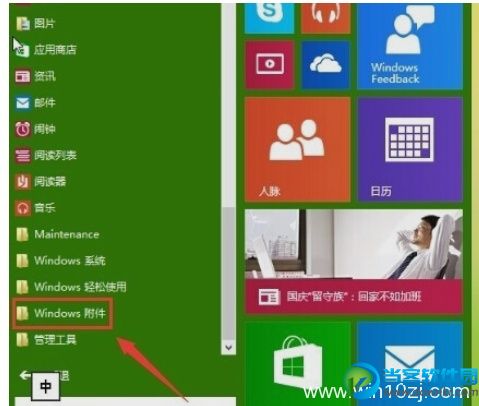
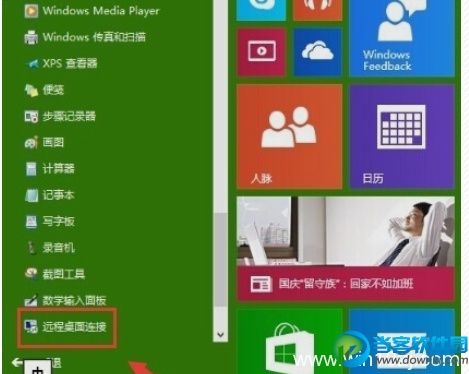
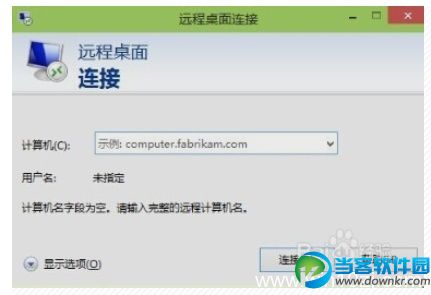
mstsc → Enter連線視窗點擊「顯示選項」可設定:顯示解析度、本機資源重導向 (印表機、剪貼板、磁碟機)、體驗優化 (網路速度自動偵測)、閘道伺服器等。
Win10 升級遇到錯誤 0x80070002?停用第三方服務法
360 Win10 升級助手 7/29 中午 12 點正式開放!升級教程連結
Win10 如何建立 Edge 瀏覽器桌面捷徑?三種方法任選
Win10 點選關機卻自動重新開機?關閉「快速啟動」徹底解決
Win10 預覽版 Steam 遊戲崩潰解決:重啟 Steam Client Service 批次檔法
Win10 應用程式商店與小娜同時失效?啟用 Network List Service 即可修復
Win10 重新註冊/重裝所有內建應用程式(PowerShell 指令)
USB 安裝 Win10 完整圖文教學:Rufus 製作啟動碟、BIOS 設定、分區選擇、OOBE 設定、激活跳過金鑰全流程