Windows 10 Build 9879 隱藏新功能:可將任務列搜尋按鈕 (放大鏡圖示) 擴展為完整搜尋列 (類似 Win10 正式版預設外觀),需修改登錄解鎖。
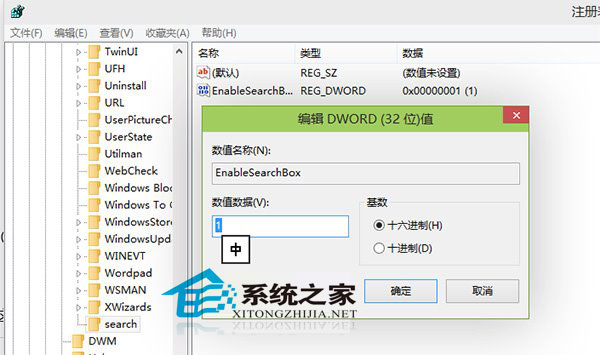
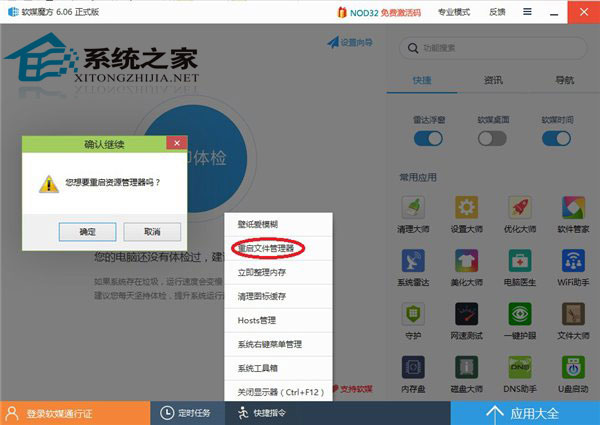
regedit 開啟登錄編輯器。HKEY_LOCAL_MACHINE\SOFTWARE\Microsoft\Windows\CurrentVersion\SearchSearch 金鑰,在 CurrentVersion 右鍵 → 新增 → 金鑰 → 命名 Search)EnableSearchBox。EnableSearchBox,將數值資料從 0 改為 1 (十六進位/十進位皆可)。explorer.exe (工作管理員 → 找到「Windows 檔案總管」 → 右鍵 → 重新啟動)。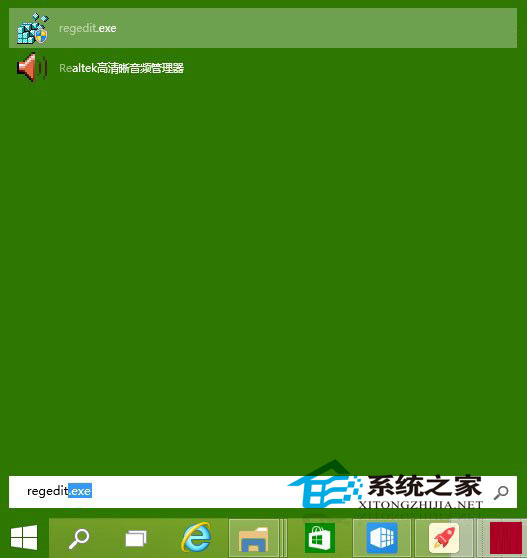
| 模式 | 外觀 | 佔用寬度 | 適用情境 |
|---|---|---|---|
| 搜尋按鈕 (預設) | 單一放大鏡圖示 | ~40px | 窄螢幕/極簡主義 |
| 搜尋列 (啟用後) | 完整輸入框 + 圖示 | ~300px+ | 寬螢幕/頻繁搜尋/觸控操作 |
| 隱藏 | 無 | 0 | 使用 Win+S 快速鍵/第三方啟動器 |
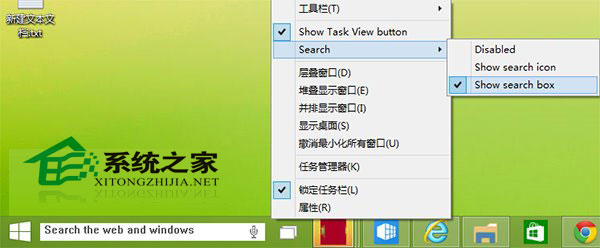
登錄生效後,右鍵任務列 → 「搜尋」將出現三個選項:
EnableSearchBox 改回 0 並重啟總管即可恢復。Windows Registry Editor Version 5.00
[HKEY_LOCAL_MACHINE\SOFTWARE\Microsoft\Windows\CurrentVersion\Search]
"EnableSearchBox"=dword:00000001
將上述內容存為 EnableSearchBox.reg,雙擊匯入 → 確認 → 重啟總管。