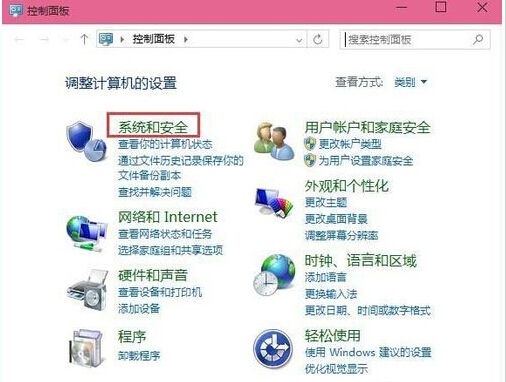
Windows 10 將控制台虛擬化、分散至「設定」應用,許多習慣 Win7/8 傳統控制台的用戶感到不適應。好消息是微軟尚未徹底移除傳統介面,透過註冊表可將其整合至桌面右鍵選單,一鍵呼叫。
Windows Registry Editor Version 5.00
; Created by https://winaero.com, reedited by https://ithome.com

[HKEY_CLASSES_ROOT\DesktopBackground\Shell\Appearance]
"MUIVerb"="個人化設定"
"SubCommands"="Wallpaper;Colors;Sounds;Screensaver;Icons"
"icon"="desk.cpl"
"Position"="Bottom"

[HKEY_LOCAL_MACHINE\SOFTWARE\Microsoft\Windows\CurrentVersion\Explorer\CommandStore\shell\Screensaver]
@="螢幕保護程式"
"Position"="Bottom"
"Icon"="desk.cpl"

[HKEY_LOCAL_MACHINE\SOFTWARE\Microsoft\Windows\CurrentVersion\Explorer\CommandStore\shell\Screensaver\Command]
@="rundll32.exe shell32.dll,Control_RunDLL desk.cpl,,@screensaver"

[HKEY_LOCAL_MACHINE\SOFTWARE\Microsoft\Windows\CurrentVersion\Explorer\CommandStore\shell\Sounds]
@="聲音"
"Position"="Bottom"
"Icon"="mmsys.cpl"

[HKEY_LOCAL_MACHINE\SOFTWARE\Microsoft\Windows\CurrentVersion\Explorer\CommandStore\shell\Sounds\Command]
@="rundll32.exe shell32.dll,Control_RunDLL mmsys.cpl,,2"

[HKEY_LOCAL_MACHINE\SOFTWARE\Microsoft\Windows\CurrentVersion\Explorer\CommandStore\shell\Wallpaper]
@="桌面背景"
"Icon"="%SystemRoot%\System32\desk.cpl"
"Position"="Bottom"

[HKEY_LOCAL_MACHINE\SOFTWARE\Microsoft\Windows\CurrentVersion\Explorer\CommandStore\shell\Wallpaper\Command]
@="control.exe /NAME Microsoft.Personalization /PAGE pageWallpaper"

[HKEY_LOCAL_MACHINE\SOFTWARE\Microsoft\Windows\CurrentVersion\Explorer\CommandStore\shell\Icons]
@="桌面圖示"
"Icon"="%SystemRoot%\System32\desk.cpl"
"Position"="Bottom"

[HKEY_LOCAL_MACHINE\SOFTWARE\Microsoft\Windows\CurrentVersion\Explorer\CommandStore\shell\Icons\Command]
@="rundll32.exe shell32.dll,Control_RunDLL desk.cpl,,0"

[HKEY_LOCAL_MACHINE\SOFTWARE\Microsoft\Windows\CurrentVersion\Explorer\CommandStore\shell\Colors]
@="視窗色彩"
"Icon"="%SystemRoot%\System32\desk.cpl"
"Position"="Bottom"

[HKEY_LOCAL_MACHINE\SOFTWARE\Microsoft\Windows\CurrentVersion\Explorer\CommandStore\shell\Colors\Command]
@="control.exe /NAME Microsoft.Personalization /PAGE pageColorization"
Windows Registry Editor Version 5.00
[-HKEY_CLASSES_ROOT\DesktopBackground\Shell\Appearance]
[-HKEY_LOCAL_MACHINE\SOFTWARE\Microsoft\Windows\CurrentVersion\Explorer\CommandStore\shell\Screensaver]
[-HKEY_LOCAL_MACHINE\SOFTWARE\Microsoft\Windows\CurrentVersion\Explorer\CommandStore\shell\Sounds]
[-HKEY_LOCAL_MACHINE\SOFTWARE\Microsoft\Windows\CurrentVersion\Explorer\CommandStore\shell\Wallpaper]
[-HKEY_LOCAL_MACHINE\SOFTWARE\Microsoft\Windows\CurrentVersion\Explorer\CommandStore\shell\Icons]
[-HKEY_LOCAL_MACHINE\SOFTWARE\Microsoft\Windows\CurrentVersion\Explorer\CommandStore\shell\Colors]
設定完成後,桌面右鍵選單新增「個人化設定」主選單,包含:桌面背景、視窗色彩、聲音、螢幕保護程式、桌面圖示 — 完全對應 Win7 經典控制台個人化面板,操作直覺高效。