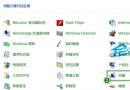
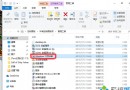
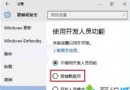
Windows 10 支援多使用者帳戶,同一裝置上,A 帳戶購買的 Microsoft Store 應用/遊戲,B 帳戶可免費安裝使用(微軟家庭共用授權機制)。操作方法如下:
操作步驟
- 以 B 帳戶登入 Windows。
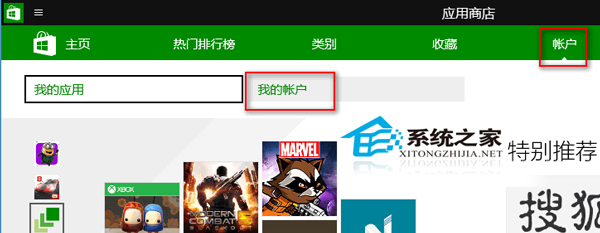
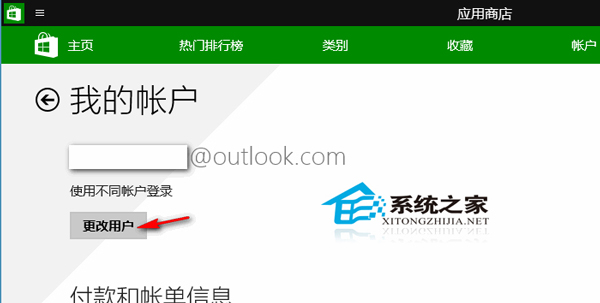
- 開啟 Microsoft Store,點選右上角使用者圖示 → 「我的帳戶」。
- 點選「變更帳戶」,改以 A 帳戶登入 Store。
- 在「我的程式庫」中找到 A 帳戶購買的應用/遊戲,點選安裝。
- 安裝完成後,切換回 B 帳戶登入 Store,應用即可在 B 帳戶下啟動使用。
注意事項:
- 僅限同一裝置、同一 Microsoft Store 區域設定。
- 部分遊戲/應用可能有「單一裝置安裝數量」限制,超過則無法安裝。
- 訂閱制服務 (如 Xbox Game Pass) 需各帳戶獨立訂閱,不共用。
善用此機制,家庭共用電腦無需重複購買應用,節省開支。