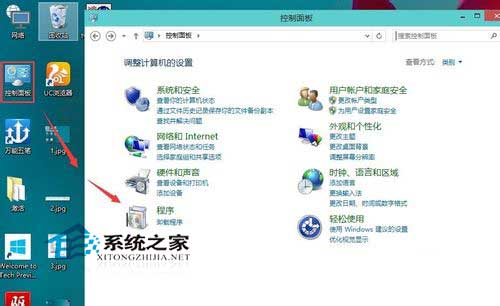
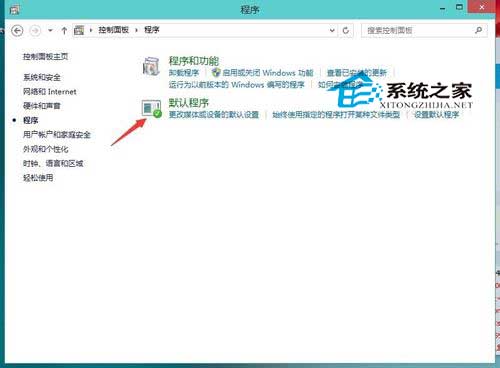
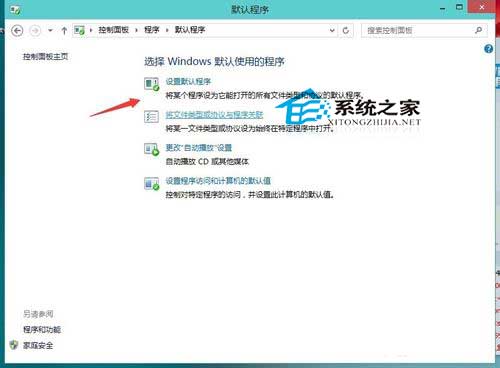
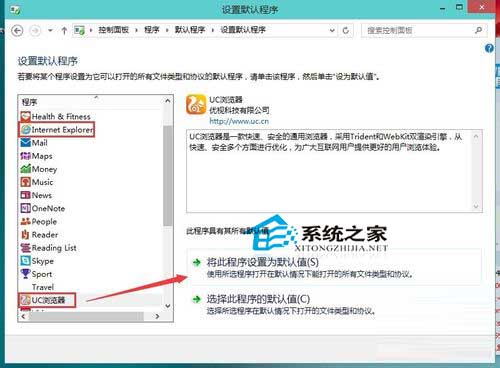
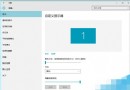
Windows 10 預設以 Microsoft Edge 為預設瀏覽器。若偏好 Chrome、Firefox、UC 等瀏覽器,可透過「預設應用程式」設定變更。
現代化設定法 (Windows 10 1703 後):設定 → 應用程式 → 預設應用程式 → 網頁瀏覽器 → 直接選擇。兩種方式皆可達成目的,瀏覽器本身設定介面通常也提供「設為預設」一鍵跳轉。
Windows 10 更新錯誤 80244021 解決教學:清理 SoftwareDistribution 快取
Win10 如何清除已使用過的頭像歷史記錄?刪除 AccountPictures 資料夾內容即可
64 位元 Win10 可用記憶體突然變少?msconfig 取消「最大記憶體」限制恢復完整容量
Win10 無法設定預設瀏覽器?微軟新規定必須在「設定」中手動指定
Win10 寫字板另存為 TXT 格式方法(含多圖示意)
Win10 ping 指令自動關閉視窗?兩種保持視窗開啟的解決方案
Win10 系統中 .srt 檔案是什麼?字幕檔用途與使用教學
Windows 10 提示「裝置處於離線狀態」無法登入:Microsoft 帳戶需聯網驗證、改用本地帳戶密碼解決