Windows 10 升級 Build 10159 失敗常見原因與對應解決方案:
Build 10158 後需綁定 Microsoft 帳戶。檢查 [設定] → [帳戶] → [您的資訊] 是否有 [驗證] 按鈕,若有請點擊完成驗證,重開機後再檢查更新。
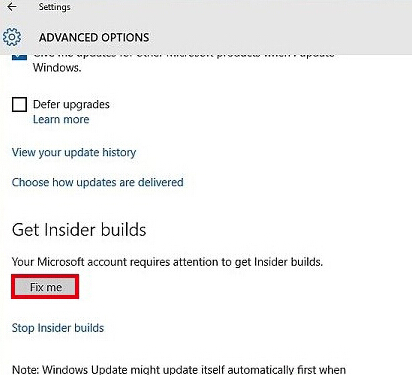
[設定] → [更新與安全性] → [Windows Update] → [進階選項] → [取得 Insider Preview 組建] → 点击 [修復我] (僅出現於偵測到問題時),等待修復完成重開機。
近期版本僅推送至快速通道。[設定] → [更新與安全性] → [Windows Update] → [進階選項] → 將 [選擇 Insider Preview 組建] 設為 [快速]。若無法儲存 (如 Build 10147 用戶),以管理員身分執行 CMD:
reg add HKLM\SOFTWARE\Microsoft\WindowsSelfHost\Applicability /v BranchName /t REG_SZ /d RS_ONECORE /f
reg add HKLM\SOFTWARE\Microsoft\WindowsSelfHost\Applicability /v ContentType /t REG_SZ /d Mainline /f
reg add HKLM\SOFTWARE\Microsoft\WindowsSelfHost\Applicability /v Ring /t REG_SZ /d WIF /f
重開機後切換成功。

關閉設定視窗 → 工作管理員 → 服務 → 找 `wuauserv` → 右鍵 [重新啟動] → 重新檢查更新。
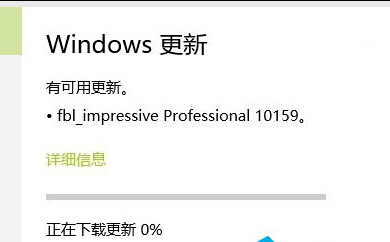


可嘗試回滾前版本、使用官方 ISO 乾淨安裝、或直接使用新版非官方 ISO 升級安裝。
Win10 任務列時間怎麼顯示秒數?登錄表新增 ShowSecondsInSystemClock 即可
Win10 命令提示字元用 for /r 快速遞迴搜尋檔案,比總管搜尋更快
Win10 FIFA Online 3 無法啟動?進入「啟動設定」停用驅動程式強制簽名
Windows 10 ISO 安裝報錯 0x80080005-0x90016「執行此工具時出現問題」解決辦法
Win10 C 槽空間暴增主因:FileRepository 驅動備份膨脹
升級 Win10 C 槽空間不足?微軟提供外接 USB/硬碟擴充方案
Win10 調整視窗標題列高度與捲軸寬度:登錄 CaptionHeight / ScrollWidth 精確控制
Win10 PowerShell 批次解除安裝內建應用:Get-AppxPackage | Remove-AppxPackage 一鍵淨化系統