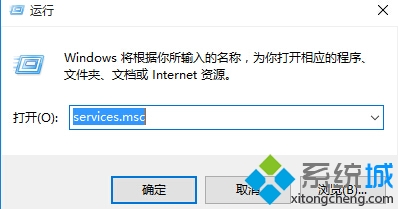
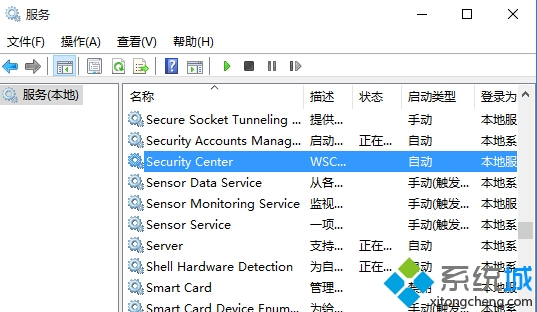
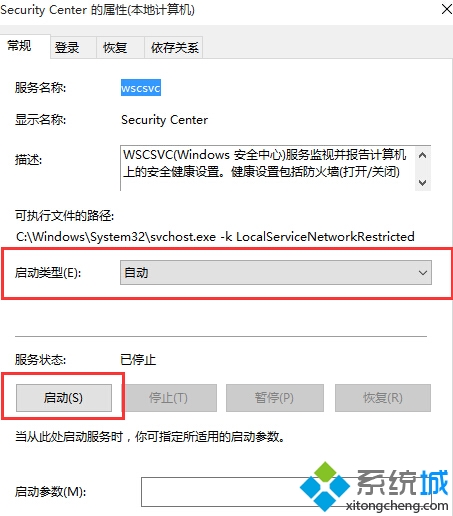
Windows 安全中心依賴「Security Center」服務運行。若該服務被設為「停用」或「手動」且未啟動,安全中心介面會顯示「無法啟動」錯誤。透過服務管理單元(services.msc)將其設為「自動」並啟動,即可恢復正常。
services.msc
Security Center 服務監控:防火牆狀態、防毒軟體狀態、自動更新、UAC、Internet 設定等,並向動作中心、網路存取保護(NAP)提供健康狀態報告。啟用後不會降低系統安全性,反而確保安全監控完整運作。
Win10 如何取消自動睡眠/待機?電源選項設定「從不」睡眠保持下載不斷線
Windows 10 查看電腦記憶體容量兩大法:系統屬性與 DirectX 診斷工具 (dxdiag)
Win10 滾動條太細看不清?教你用登錄檔自訂寬度與高度
Win10 Spartan/Edge 修改預設搜尋引擎為 Google:匯入登錄檔一鍵切換
Win10 無法設定預設瀏覽器?微軟新規定必須在「設定」中手動指定
Windows 10 裝置管理員在哪?兩種快速開啟方法圖解
Win10 10547 預覽版頻繁藍屏重啟?關閉 Windows Defender 開機掃描與驅動簽章強制
Win10 啟用舊版命令提示字元 (Win8 風格):屬性→勾選「使用舊版主控台」→重啟