Python 是入門程式設計、資料分析、自動化腳本的首選語言。在 Windows 10 上安裝 Python 只需幾分鐘,但新手常在版本選擇、路徑設定、環境變數上卡關。本文提供從官網下載到驗證安裝的完整步驟,並補充常見坑點與解決方案。
步驟 1:前往官網下載安裝程式
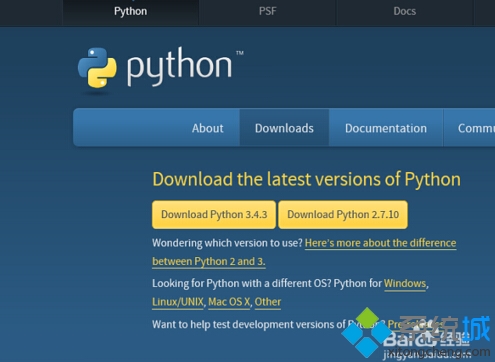
- 開啟瀏覽器前往 python.org/downloads/windows。
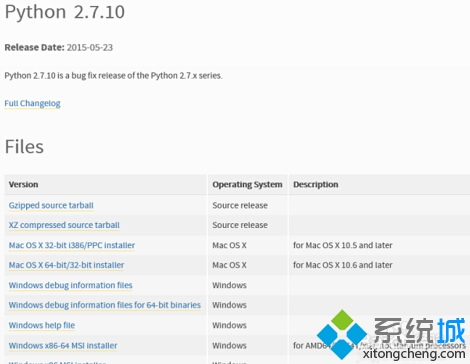
- 建議下載 **Python 3.10+ 穩定版**(文章截圖為 3.4/2.7 已過時,請勿使用舊版)。
- 依系統架構選擇:
- 64 位元系統 → 下載 Windows installer (64-bit)
- 32 位元系統 → 下載 Windows installer (32-bit)
步驟 2:執行安裝程式(關鍵:勾選 Add to PATH)
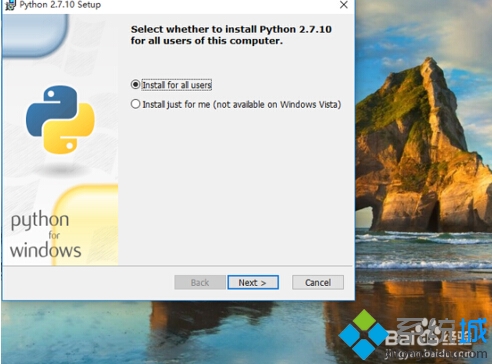
- 雙擊下載的
python-3.x.x-amd64.exe。
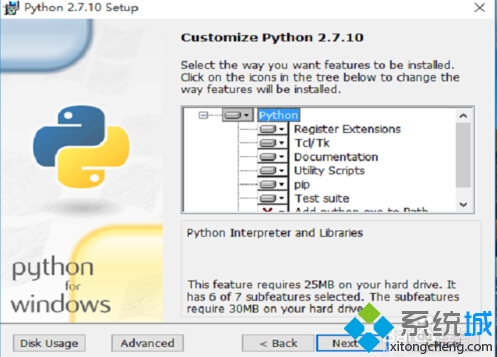
- 務必勾選底部「Add Python 3.x to PATH」(將 Python 加入系統環境變數),此步驟最重要,免去後續手動設定。
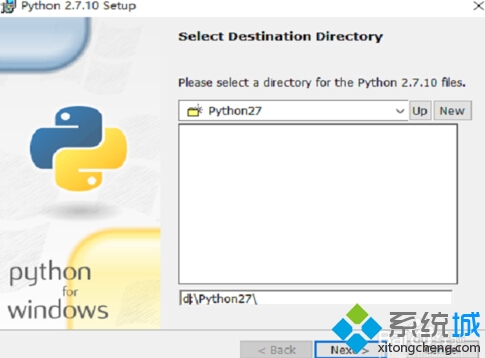
- 選擇「Customize installation」可自訂安裝路徑與選用功能;初學者建議直接點「Install Now」使用預設路徑(通常為
C:\Users\<使用者名稱>\AppData\Local\Programs\Python\Python3x)。
步驟 3:驗證安裝成功
- 安裝完成後,開啟「命令提示字元」或 PowerShell(Win+R 輸入
cmd)。
- 輸入
python --version 或 python -V,應顯示 Python 3.x.x。
- 輸入
pip --version 確認套件管理工具可用。
- 輸入
python 進入互動模式,輸入 print("Hello Windows 10") 測試執行。
步驟 4:將 Python 固定到工作列/開始選單(方便啟動)
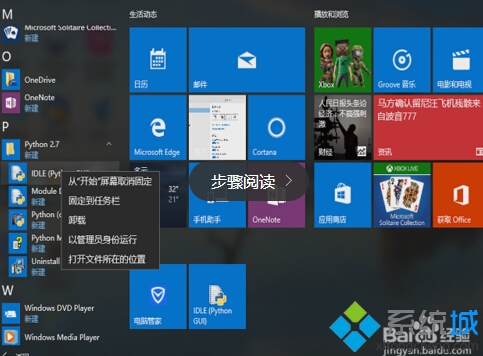
- 按 Win 開啟開始選單,輸入「Python」搜尋。
- 右鍵「Python 3.x (64-bit)」或「IDLE」→ 選擇「釘選到工作列」或「釘選到開始畫面」。
常見問題與補充
Q: 忘記勾選 Add to PATH 怎麼辦?
重新執行安裝程式 → 選擇「Modify」→ 勾選「Add Python to environment variables」→ 安裝。或手動將 Python 安裝路徑與 Scripts 子資料夾加入「系統環境變數」→「Path」。
Q: 同時需要 Python 2 與 Python 3?
建議安裝 pyenv-win 管理多版本,避免路徑衝突。
Q: 安裝套件時權限錯誤?
以「系統管理員身分執行」命令提示字元,或使用 pip install --user 套件名 安裝至使用者目錄。
Q: 檢查 MD5/SHA256 確保檔案完整?
官網提供 SHA256 雜湊值,可用 PowerShell Get-FileHash 檔案路徑 -Algorithm SHA256 驗證。
下一步建議
- 安裝 Visual Studio Code + Python 擴充套件,獲得最佳開發體驗。
- 學習虛擬環境
python -m venv venv 隔離專案依賴。
- 閱讀《Python 官方教學》或《Automate the Boring Stuff with Python》入門實作。
完成上述步驟,您的 Windows 10 即擁有完整可用的 Python 開發環境,隨時開始寫代碼!