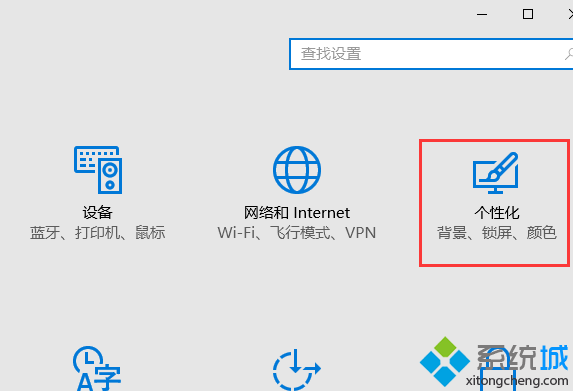
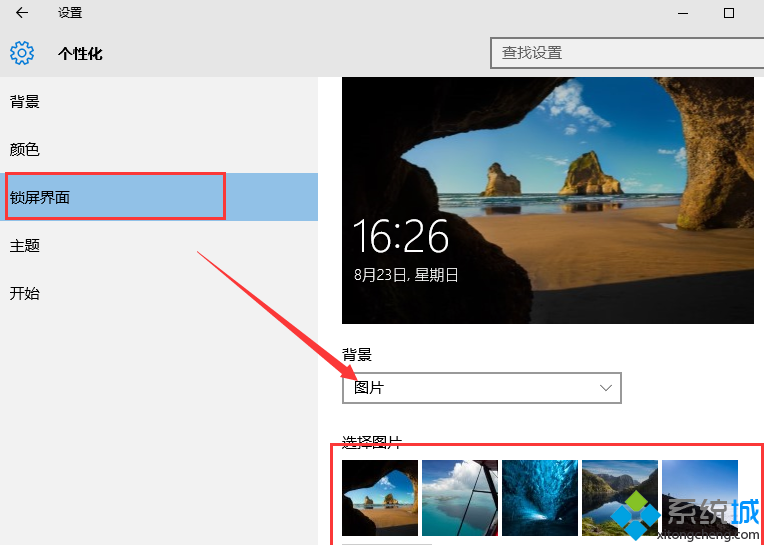
Windows 10 鎖定畫面支援單一圖片、幻燈片播放、Windows 聚焦(每日自動更新必應美圖)三種模式,設定簡單直覺。
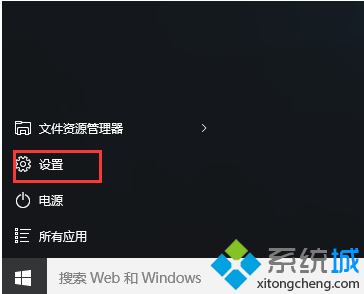
Windows 10 內建防火牆與 Windows Defender 使用介紹
Win10 系統如何進行磁碟配額設定?限制使用者磁碟用量並記錄超額事件
Win10 硬碟使用率 100% 解決方案:關閉家庭群組、自動維護、虛擬記憶體、IPv6、Defender 五大優化
Win10 14279 更新內容與已知問題彙整 (含 QQ 當機)
Windows 10 取消開始選單固定磚塊:還原傳統 Windows 7 風格選單
Win10 修改使用者名稱:控制台 → 使用者帳戶 → 更改帳戶名稱(需啟用系統)