Win10 預設移除「公文包」 (Briefcase) 右鍵新建選項,功能仍保留於系統,可透過登錄喚醒。
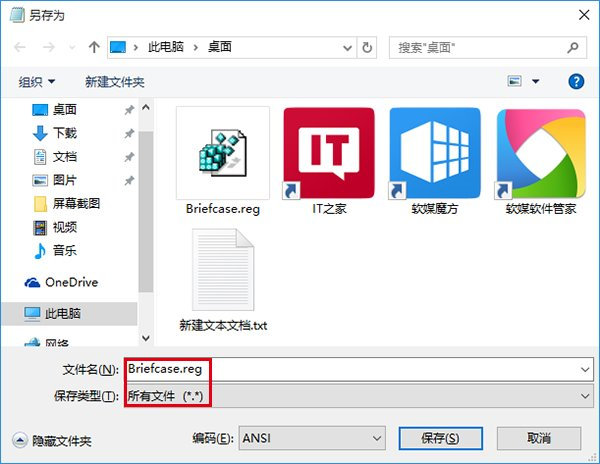
Briefcase.reg (編碼 ANSI/UTF-16 LE):Windows Registry Editor Version 5.00
[HKEY_LOCAL_MACHINE\SOFTWARE\Classes\Briefcase\ShellNew]
"IconPath"=hex(2):25,00,53,00,79,00,73,00,74,00,65,00,6d,00,52,00,6f,00,6f,00,74,00,25,00,5c,00,73,00,79,00,73,00,74,00,65,00,6d,00,33,00,32,00,5c,00,73,00,79,00,6e,00,63,00,75,00,69,00,2e,00,64,00,6c,00,6c,00,2c,00,30,00,00,00
"ItemName"=hex(2):40,00,25,00,53,00,79,00,73,00,74,00,65,00,6d,00,52,00,6f,00,6f,00,74,00,25,00,5c,00,73,00,79,00,73,00,74,00,65,00,6d,00,33,00,32,00,5c,00,73,00,68,00,65,00,6c,00,6c,00,33,00,32,00,2e,00,64,00,6c,00,6c,00,2c,00,2d,00,36,00,34,00,39,00,33,00,00,00
"Directory"=""
"Handler"="{85BBD920-42A0-1069-A2E4-08002B30309D}"
[HKEY_LOCAL_MACHINE\SOFTWARE\Classes\Briefcase\ShellNew\Config]
"IsFolder"=""
"NoExtension"=""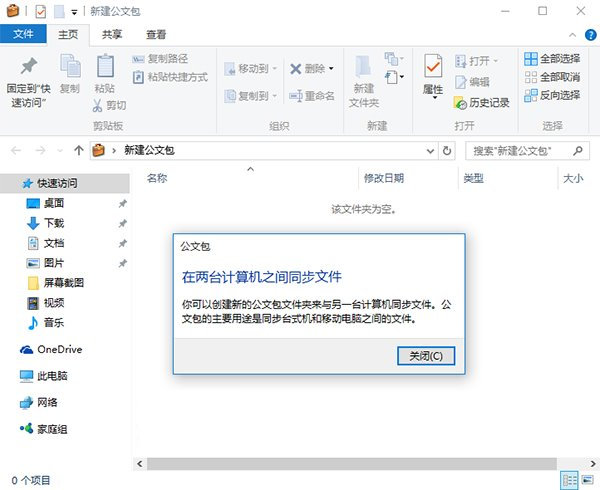
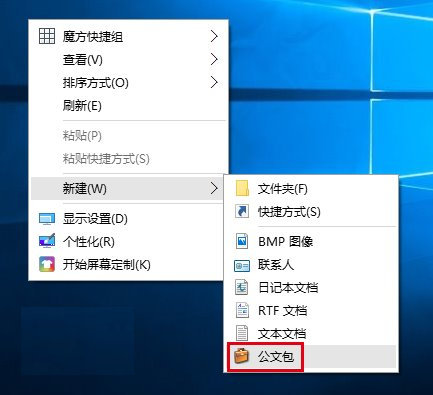
執行以下登錄檔移除:
Windows Registry Editor Version 5.00
[-HKEY_LOCAL_MACHINE\SOFTWARE\Classes\Briefcase\ShellNew]Win8/8.1/10 通用。
Win10 Compact 壓縮技術節省硬碟空間:管理員 CMD 一鍵啟用,無需第三方工具
Windows 10 設定視覺效果:系統屬性 → 進階 → 效能設定自訂或選最佳效能
Win10 TH2 升級錯誤 0xC1900101 解決:移除顯卡驅動重試
Windows 10 開始菜單如何新增或移除資料夾捷徑?設定裡的「選擇顯示的資料夾」
Win10 還原 Win8.1 備份 U 盤報錯 0xc000000f?關閉 Secure Boot 並修復啟動項解決
Win10 開機按 F8 進不了安全模式?用 msconfig 設定啟動進入安全模式