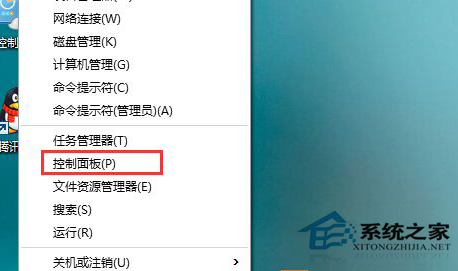
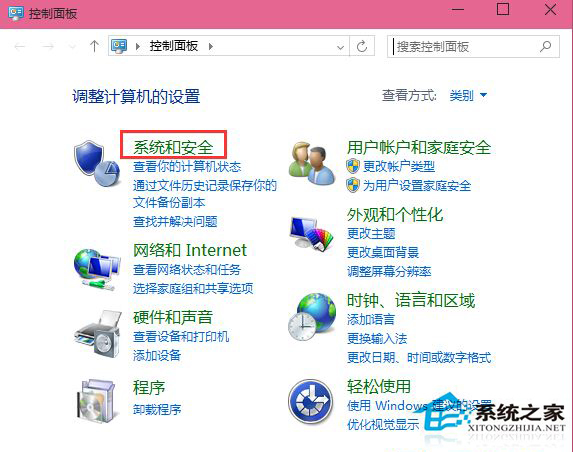
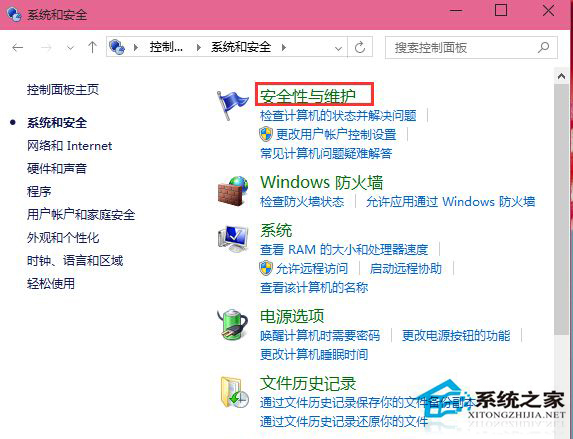
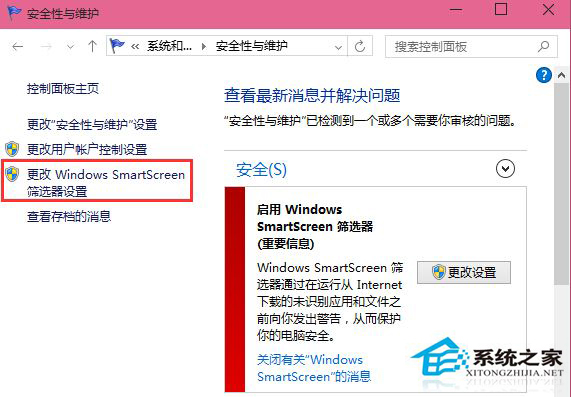
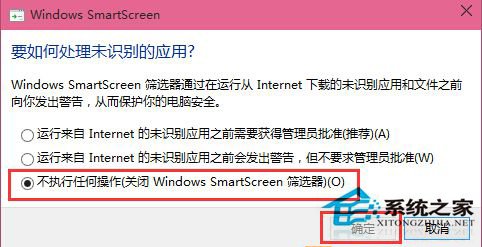
Windows 10 執行未簽名或低信譽應用程式時,SmartScreen 篩選器會彈出「Windows 已保護您的電腦」視窗需點擊「更多資訊」→「仍要執行」才能執行,頗為繁瑣。可透過控制台關閉此功能。
關閉後執行未知應用程式將不再彈出攔截視窗,直接執行。注意:此舉降低系統防護層級,建議僅在確認應用程式來源安全時操作,或搭配防毒軟體使用。
Win10 無法開啟 EML 檔案?三種解法:Outlook 關聯、改副檔名 .mht、免費檢視器
Win10 系統備份教學:建立系統映像備份還原點
升級 Win 10 後網速變慢、佔用頻寬?關閉 P2P 更新分享功能省流量
Win10 解決 Realtek 音效驅動安裝逾時 (0x000005b4) 的群組原則方案
Win10 如何關閉 Windows Defender?群組原則永久停用內建防毒
Win10 提示「缺少一或多個網路通訊協定」修復:IP 設定檢查、網卡重置、關鍵服務啟動、Winsock 重置五步驟
Win10 卸載揚聲器裝置:裝置管理器操作步驟
Win10 週年更新「快速助手」遠端協助完整使用教學:邀請協助/請求控制、邀請碼 10 分鐘效期、Microsoft 帳號登入