Windows XP Windows 7 Windows 2003 Windows Vista Windows 綜合教學 Linux 系統教學
Windows 10 Windows 8 Windows 2008 Windows NT Windows Server 電腦軟體教學

Windows 10 版 Linux Bash 使用教學(完整版)

編輯:Windows 10 系統介紹

前言

Windows 10 一週年更新引入 WSL(Windows Subsystem for Linux),讓使用者能在 Windows 原生環境執行 Ubuntu Bash。本文整理從啟用功能到常用指令的完整流程。

啟用 WSL 並安裝 Bash

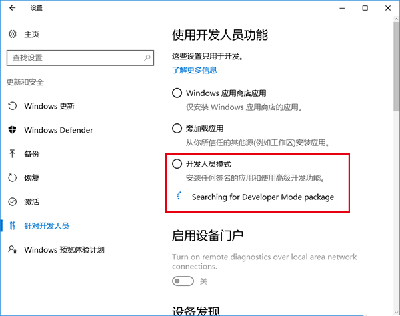
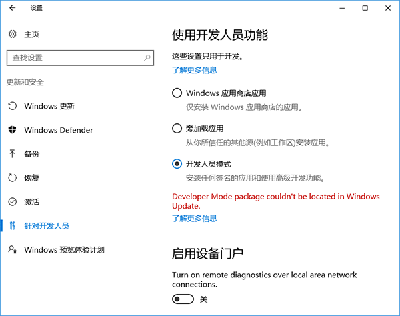
  1. 「設定 → 更新與安全性 → 開發人員專用」啟用「開發人員模式」,下載開發人員模式套件(失敗可忽略)。
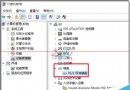
  2. 「控制台 → 程式和功能 → 開啟或關閉 Windows 功能」勾選「適用於 Linux 的 Windows 子系統 (Beta)」,確定並重開機。
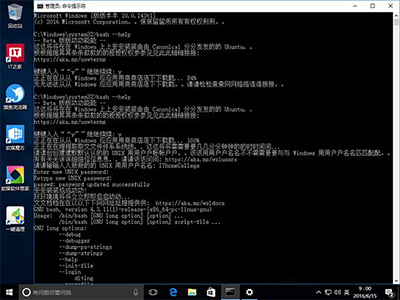
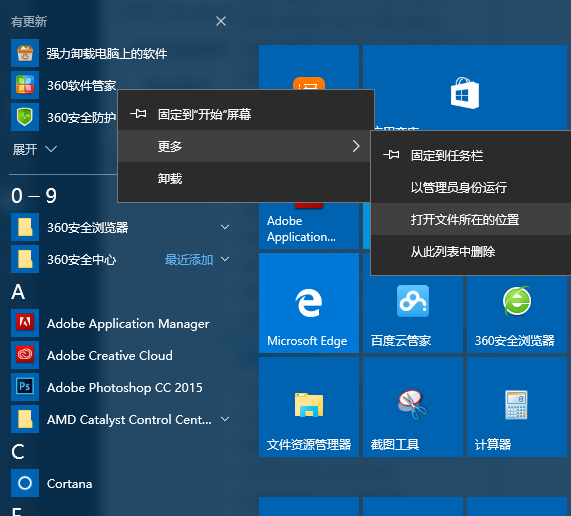
  3. 以系統管理員身分開啟「命令提示字元」,輸入 bash 或 C:\Windows\System32\bash.exe。
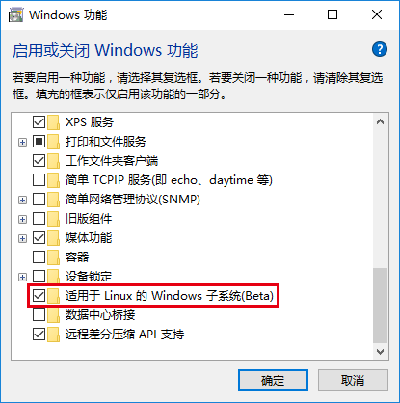
  4. 首次執行會從 Windows Store 下載 Ubuntu 映像檔;網路不佳可能出現下載異常,請重試。
  5. 安裝完成後建立 Unix 使用者名稱與密碼(密碼不顯示,需輸入兩次)。

WSL 啟用畫面

開發人員模式套件

套件下載失敗

啟用 WSL 功能

從商店下載 Ubuntu

常用 Bash 參數與指令

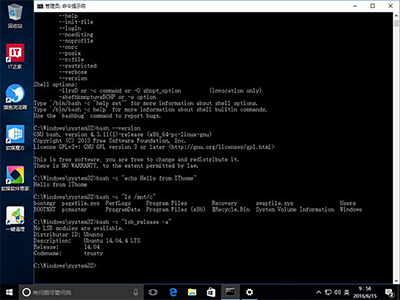
  • bash --help:顯示說明
  • bash --debug:除錯模式
  • bash --init-file <檔案>:載入初始化腳本
  • bash --version:顯示版本

Bash 參數示範

在 Windows 命令列直接執行 Linux 指令

格式:bash -c "linux指令"(注意 -c 後有空格)。

bash -c "echo Hello from IThome"
bash -c "ls /mnt/c"
bash -c "lsb_release -a"

此方式適合在批次檔、排程工作中呼叫 Linux 工具,無需進入互動式 Shell。

Copyright © Windows教程網 All Rights Reserved