Windows XP Windows 7 Windows 2003 Windows Vista Windows 綜合教學 Linux 系統教學
Windows 10 Windows 8 Windows 2008 Windows NT Windows Server 電腦軟體教學

Win10 80 連接埠被佔用導致伺服器啟動失敗?三種解決方案

編輯:Windows 10 系統介紹

在 Windows 10 上架設本地伺服器 (如 IIS、Apache、Nginx) 時,常遇到「80 連接埠被佔用」錯誤。主因為 System 進程 (PID 4) 或 World Wide Web Publishing Service 佔用該埠。本文提供命令列、服務管理、登錄編輯三種解決方案。

方案一:命令列停用 HTTP 服務 (最快)

  1. 以系統管理員身分開啟「命令提示字元」。
  2. 輸入 net stop http,若提示確認請輸入 Y。
  3. 輸入 sc config http start=disabled 設定開機不自動啟動。

方案二:服務管理工具停用相關服務

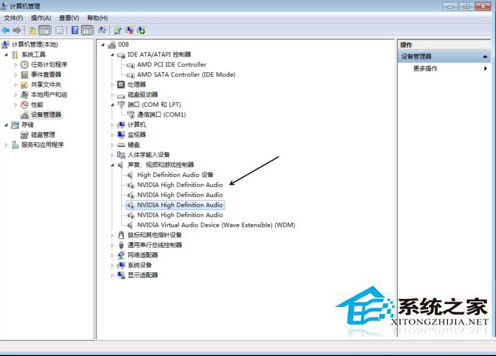
  1. 按 Win+X 選擇「電腦管理」→「服務與應用程式」→「服務」。
  2. 找到「World Wide Web Publishing Service」,啟動類型改為「手動」,狀態設為「停止」。
  3. 若 80 埠仍被佔用,依序停用以下服務:
    「SSDP Discovery」、「Print Spooler」、「HomeGroup Provider」、「Function Discovery Resource Publication」、「Function Discovery Provider Host」。

方案三:登錄編輯修改 HTTP 服務啟動值

  1. 以系統管理員身分執行 regedit。
  2. 定位至 HKEY_LOCAL_MACHINE\SYSTEM\CurrentControlSet\Services\HTTP。
  3. 將右側 Start 值修改為 0 (停用)。
  4. 重新開機生效。

建議優先使用方案一,若無效再嘗試方案二、三。修改後請確認伺服器軟體已正確設定監聽 80 埠。

Copyright © Windows教程網 All Rights Reserved