Windows XP Windows 7 Windows 2003 Windows Vista Windows 綜合教學 Linux 系統教學
Windows 10 Windows 8 Windows 2008 Windows NT Windows Server 電腦軟體教學

Win10 如何查詢錯誤報告尋找解決方案?內建診斷指令教學

編輯:Windows 10 系統介紹

Windows 10 內建錯誤報告與解決方案查詢機制,可透過特定指令喚出介面,幫助使用者分析系統/應用程式崩潰原因並尋找修正建議。

查詢方法

  1. 啟動解決方案檢查: Win + R → 輸入:
    rundll32.exe werconcpl.dll,LaunchErcApp -updatecheck → Enter。
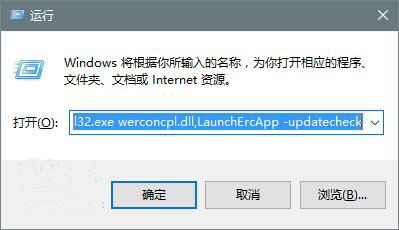
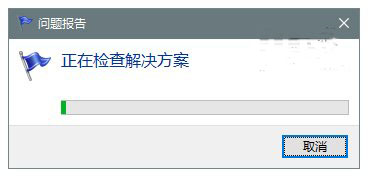
    系統將開啟「問題報告與解決方案」介面自動檢查線上修正方案。
  2. 檢視詳細錯誤報告歷程: Win + R → 輸入:
    control.exe /name Microsoft.ActionCenter /page pageSignoff → Enter。
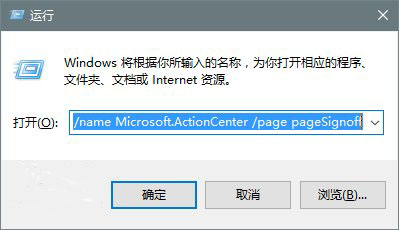
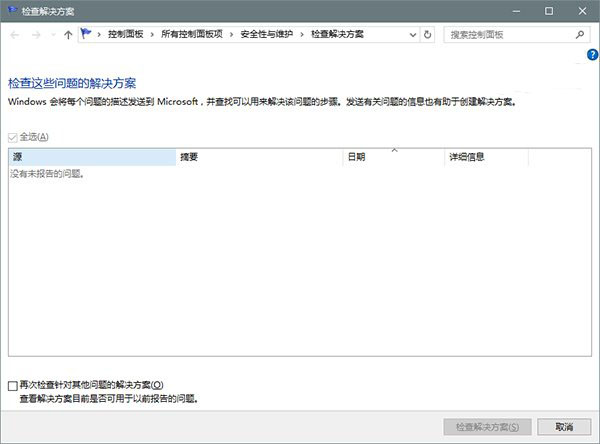
    開啟「安全性與維護」→「維護」→「查看可靠性歷程記錄」或「問題報告」,查看具體錯誤模組、時間、解決方案連結。

延伸工具

  • 可靠性監視器: 搜尋「檢視可靠性歷程記錄」或執行 perfmon /rel,時間軸視覺化顯示系統穩定指數與關鍵事件。
  • 事件檢視器: eventvwr.msc → Windows 記錄 → 系統/應用程式,篩選「錯誤」層級,查看 Event ID 與詳細描述 (如 Event ID 1000 應用程式當機)。
  • 藍屏分析: 使用 BlueScreenView (NirSoft) 或 WinDbg 讀取 C:\Windows\Minidump\*.dmp 分析崩潰模組。
Copyright © Windows教程網 All Rights Reserved