Windows XP Windows 7 Windows 2003 Windows Vista Windows 綜合教學 Linux 系統教學
Windows 10 Windows 8 Windows 2008 Windows NT Windows Server 電腦軟體教學

Win10 UWP 版檔案總管建立捷徑教學:AppsFolder Shell 指令法 (功能極簡、僅供體驗)

編輯:Windows 10 系統介紹

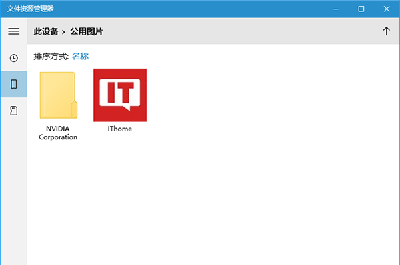
Windows 10 內建 UWP 版檔案總管 (位於 C:\Windows\SystemApps\Microsoft.Windows.FileExplorer_cw5n1h2txyewy\FileExplorer.exe),屬 UWP 應用程式,無法直接雙擊執行。透過 Shell 指令建立捷徑可啟動,但目前功能極度精簡:無地址列、無法進入「這台電腦」、基本無實際檔案管理能力,僅能窺探設計原型。未來 RS2/後續版本預期逐步完善。

UWP 檔案總管路徑

C:\Windows\SystemApps\Microsoft.Windows.FileExplorer_cw5n1h2txyewy\FileExplorer.exe
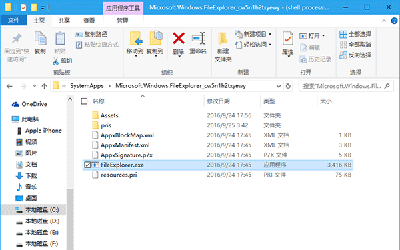
建立捷徑步驟 (Shell:AppsFolder 協定)

  1. 桌面右鍵 → 「新增」 → 「捷徑」。
  2. 項目位置輸入:
    explorer.exe shell:AppsFolder\c5e2524a-ea46-4f67-841f-6a9465d9d515_cw5n1h2txyewy!App
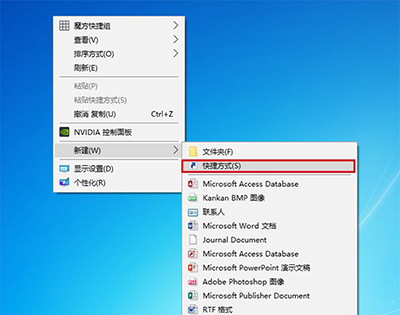
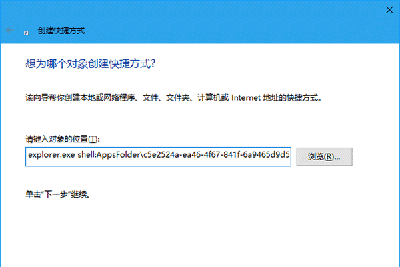
  3. 命名 (如「UWP 檔案總管」) → 完成。
  4. 雙擊捷徑即可啟動 UWP 版檔案總管。

現況評估

  • 介面極簡,僅基本資料夾瀏覽。
  • 無地址列、無「這台電腦」、無網路位置、無進階操作。
  • 定位:微軟內部原型/體驗管道,非正式發布功能。
  • 期待:Redstone 2 (RS2) 及後續版本逐步補齊 Win32 版功能平權。
Copyright © Windows教程網 All Rights Reserved