企業環境或特定需求下,可能需要防止使用者手動點擊「檢查更新」下載安裝更新。透過群組原則編輯器即可達成此管控目標,且不影響系統自動更新機制。
操作步驟
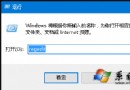
- 在 Cortana 搜尋列輸入「群組原則」或
gpedit.msc,按 Enter 開啟「本機群組原則編輯器」。
- 依序展開:電腦設定 → 系統管理範本 → Windows 元件 → Windows Update。
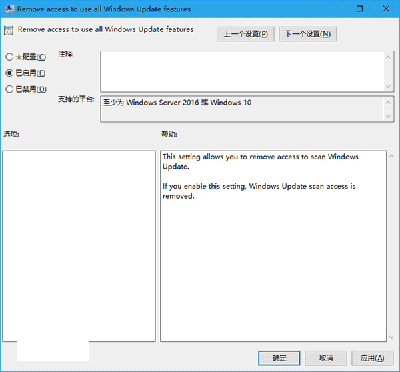
- 在右側窗格找到 Remove access to all Windows Update features(移除存取所有 Windows Update 功能),雙擊開啟。
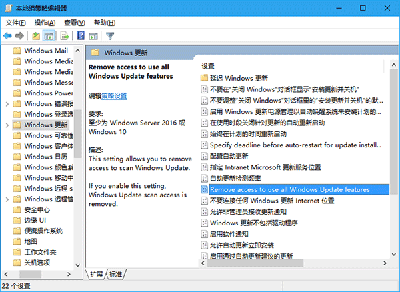
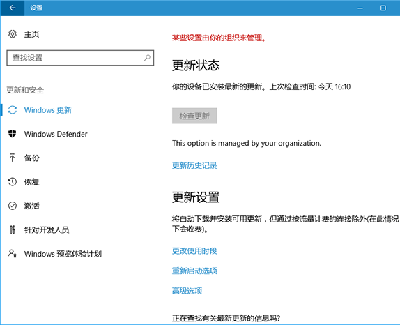
- 選擇 已啟用,按「確定」。此設定會將「檢查更新」按鈕變灰無法點選。
- 生效方式: 需重新啟動檔案總管、登出/登入或重開機。可使用「軟媒魔方」等工具快速重啟檔案總管使設定即時生效。
重要說明
- 設為「已啟用」後,使用者無法手動掃描/下載/安裝更新,但不影響已設定的自動下載安裝或自動掃描排程任務。
- 若要恢復手動更新功能,需回原位置將原則改為「未設定」或「已停用」,同樣需重啟檔案總管或電腦生效。