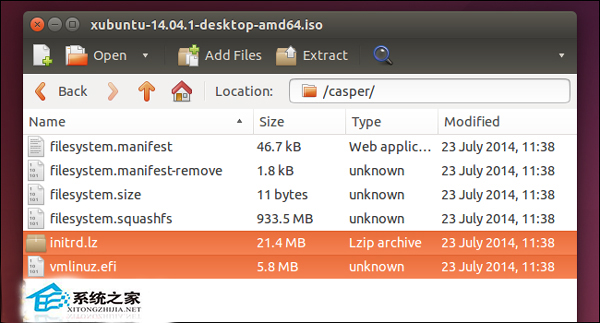
無需燒錄光碟/USB,直接從硬碟啟動 Linux ISO 檔。前提:已安裝 Linux 系統、使用 GRUB2** 開機載入器、ISO 為 Live 版本 (含 casper/vmlinuz、casper/initrd)。
/home/user/isos/ubuntu-14.04-desktop-amd64.iso)。# 圖形介面右鍵「用歸檔管理器開啟」
# 或命令列:
mkdir /mnt/iso
mount -o loop ubuntu-14.04-desktop-amd64.iso /mnt/iso
ls /mnt/iso/casper/
# vmlinuz.efi initrd.lz (或 vmlinuz / initrd.img)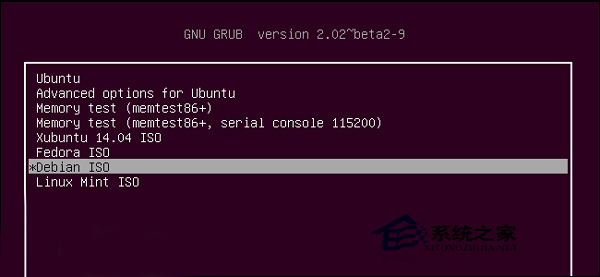
| Linux 路徑 | GRUB2 裝置名 | 說明 |
|---|---|---|
| /dev/sda1 | (hd0,1) | 磁碟 0、分區 1 (GRUB 磁碟從 0、分區從 1) |
| /dev/sdb3 | (hd1,3) | 磁碟 1、分區 3 |
使用 sudo fdisk -l 確認 ISO 所在分區對應的 GRUB 裝置名。
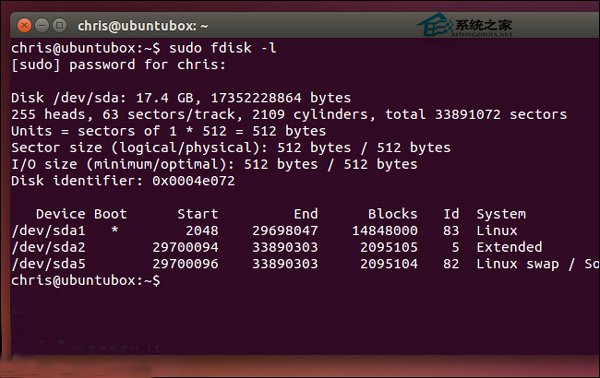
編輯 /etc/grub.d/40_custom:
menuentry "Ubuntu 14.04 Live ISO" {
    set isofile="/home/user/isos/ubuntu-14.04-desktop-amd64.iso"
    loopback loop (hd0,1)$isofile
    linux (loop)/casper/vmlinuz.efi boot=casper iso-scan/filename=$isofile quiet splash
    initrd (loop)/casper/initrd.lz
}
更新 GRUB:
sudo update-grub關鍵參數:iso-scan/filename=告訴核心 ISO 位置以掛載根檔案系統;boot=casper指定 initrd 腳本;UEFI 系統需用vmlinuz.efi,Legacy BIOS 用vmlinuz。其他發行版 (Fedora、Arch、CentOS) 同理,只需調整核心/initrd 路徑與啟動參數。