一、取消開機密碼(自動登入)
方法 1:control userpasswords2(最簡單)
- Win+R →
control userpasswords2。
- 取消勾選 「使用者必須輸入使用者名稱和密碼才能使用這台電腦」。
- 套用 → 輸入欲自動登入的帳號密碼確認 → 確定。
方法 2:rundll32 呼叫舊版介面
- Win+R →
rundll32 netplwiz.dll,UsersRunDll(區分大小寫)。
- 同樣取消勾選「使用者必須輸入...」→ 確定。
方法 3:登錄檔直接寫入自動登入資訊
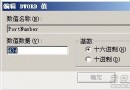
regedit 定位:HKEY_LOCAL_MACHINE\SOFTWARE\Microsoft\Windows NT\CurrentVersion\Winlogon- 設定三個字串值:
DefaultUserName = 你的帳號
DefaultPassword = 你的密碼
AutoAdminLogon = 1
- 重啟生效。
二、取消開機登入畫面(直接進桌面)
- Win98: 網路內容 → 「用戶設定檔」→ 選「Windows 登入」。
- Win2000: 控制台 → 「使用者和密碼」→ 「使用者」取消「使用者登入需要密碼」→ 「進階」取消「登入前按 Ctrl+Alt+Del」。
- Win XP: 僅保留一個無密碼的使用者帳號,刪除其他帳號,系統將直接進入該帳號桌面。
安全性提醒
自動登入雖便利,但任何人開機即可存取所有資料。建議:
① 僅在獨立、物理安全的環境使用。
② 重要資料加密(EFS/第三方加密工具)。
③ 離座必鎖定(Win+L)。