「說明及支援中心」是查詢系統功能、診斷故障的首選管道,但它本身也會出狀況。本文整理四大常見故障解決方案,並提供三種替代啟用路徑與備份離線說明檔技巧。
helpctr -regserver 重新註冊元件。C:\Windows\inf(隱藏資料夾,需設定顯示),右鍵 pchealth.inf → 「安裝」,依提示插入 XP 安裝光碟完成修復。services.msc 開啟服務管理,找到「Help and Support」→ 雙擊 → 「啟動類型」設「自動」,「服務狀態」按「啟動」。sfc /scannow 修復系統檔案(需安裝光碟)。winhlp32.exe,SP1 用 winhlp32sp1.exe)。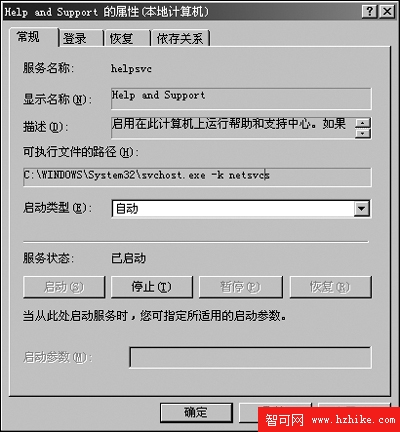
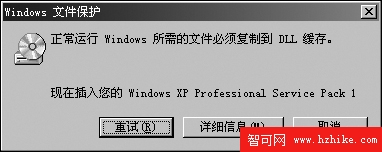
C:\Windows\System32\win32hlp.exe 遺失I386 目錄複製 Winhlp32.cn_、Winhlp32.ex_、Winhlp32.hl_ 至暫存資料夾(如 C:\help)。cmd 進入該目錄,依序執行:expand Winhlp32.cn_ Winhlp32.cntexpand Winhlp32.ex_ Winhlp32.exeexpand Winhlp32.hl_ Winhlp32.hlpWinhlp32.exe 複製至 C:\Windows,Winhlp32.hlp 複製至 C:\Windows\Help,刪除暫存資料夾。regedit 定位 HKEY_LOCAL_MACHINE\SYSTEM\CurrentControlSet\Control\Session Manager\Environment,將 windir 值類型改為 REG_EXPAND_SZ。C:\Windows\PCHEALTH\HELPCTR\Config\News\newsver.xml。| 版本 | 指令/網址 | 說明 |
|---|---|---|
| XP Professional | IE 輸入 hcp://system/HomePage.htm | 直接開啟說明首頁 |
| XP Professional | Win+R → hh windows.chm | 開啟簡易版 CHM 說明(如圖 3) |
| XP Home | Win+R → %windir%\hh.exe ms-its:%windir%\Help\windows.chm::/Windows.htm | Home 版專用指令 |
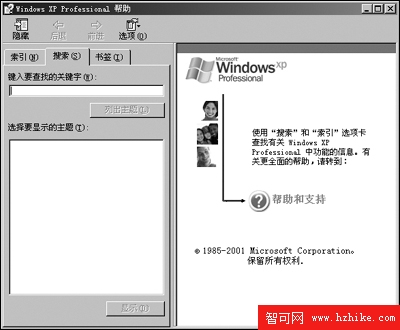
若 CHM 檔案關聯失效,修復登錄:
HKEY_CLASSES_ROOT\chm.file\shell\open\command 預設值 → "C:\Windows\hh.exe" %1
HKEY_CLASSES_ROOT\.chm 預設值 → chm.file
C:\Windows\Help,按類型排序。.chm 檔案複製備份。Access.chm(輔助功能)、mmc.chm(MMC 主控台)等,可用 CHM 編輯工具進一步整理。微軟線上支援庫:https://support.microsoft.com/default.aspx