Windows XP 引入全新視覺樣式:圓角按鈕、漸層進度條、立體核取方塊等。Visual Studio .NET (2002/2003) 雖內建相同控件,但預設仍呈現 Windows 98/2000 風格。本文詳細說明如何透過 FlatStyle.System 與 Manifest 檔,讓自訂表單套用 XP 原生外觀,並附完整 VB.NET / C# 實作範例。
ButtonBase 的控件 (Button, CheckBox, RadioButton, GroupBox) 擁有 FlatStyle 屬性,設為 System 即由作業系統繪製,自動套用當前視覺樣式。| 類別 | 控件 | 說明 |
|---|---|---|
| 自動套用 (無需 FlatStyle) | ProgressBar | 進度條自動呈現 XP 樣式 |
| TabControl | 索引標籤頁面 | |
| ToolBar / StatusBar | 工具列/狀態列 | |
| TreeView / ListView | 樹狀/清單檢視 | |
| ScrollBar (非客戶區) | 視窗框架捲軸由 OS 自動處理 | |
| 其餘 Common Controls 6.0 內建控件 | 同上 | |
| 需設 FlatStyle.System | Button | 圓角、按下動畫 |
| CheckBox | 立體勾選框 | |
| RadioButton | 圓形選項鈕 | |
| GroupBox | 圓角群組框 | |
| 外觀不變 | Label / LinkLabel | 純文字/連結標籤 |
| DomainUpDown / NumericUpDown | 微調控件 | |
| CheckedListBox | 核取清單方塊 | |
| TextBox / RichTextBox | 文字方塊 | |
| ComboBox / ListBox | 下拉/清單方塊 | |
| DataGrid 等複合控件 | 由子元件決定 |
Manifest 是 XML 格式的應用程式資訊清單,告知載入器:「此程式需載入 Comctl32.dll v6.0」。兩種部署方式:
YourApp.exe.manifest。<?xml version="1.0" encoding="UTF-8" standalone="yes"?>
<assembly xmlns="urn:schemas-microsoft-com:asm.v1" manifestVersion="1.0">
<assemblyIdentity
version="1.0.0.0"
processorArchitecture="X86"
name="CompanyName.ProductName.YourApp"
type="win32"
/>
<description>Your Application Description</description>
<dependency>
<dependentAssembly>
<assemblyIdentity
type="win32"
name="Microsoft.Windows.Common-Controls"
version="6.0.0.0"
processorArchitecture="X86"
publicKeyToken="6595b64144ccf1df"
language="*"
/>
</dependentAssembly>
</dependency>
</assembly>關鍵點:processorArchitecture="X86"適用 32 位元應用;若編譯為 64 位元請改amd64。publicKeyToken必須完全一致。
Button、RadioButton、CheckBox、ProgressBar、Label (對照用)。Click 事件,撰寫測試碼:' VB.NET
Private Sub Button1_Click(ByVal sender As System.Object, _
ByVal e As System.EventArgs) Handles Button1.Click
ProgressBar1.Value = 50
End Sub
// C#
private void button1_Click(object sender, System.EventArgs e)
{
progressBar1.Value = 50;
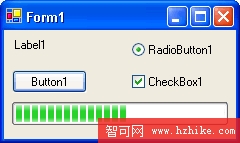
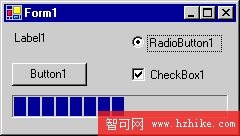
}<專案名稱>.exe.manifest (例如 MyXPApp.exe.manifest)。assemblyIdentity name 與 description。bin\Debug 或 bin\Release),與 .exe 同層。rc.exe / cvtres.exe 命令列手動嵌入 (ID=1, 類型=RT_MANIFEST)。在 Windows XP 上執行編譯後的 .exe:
| 現象 | 可能原因 | 解決方向 |
|---|---|---|
| 控件仍為舊風格 | Manifest 未生效 (檔名錯誤、未置同目錄、未內嵌) | 用 mt.exe -inputresource:YourApp.exe;#1 驗證內嵌資源;或用 sxstrace 追蹤並存載入失敗 |
| 僅部分控件變樣 | FlatStyle 未設 System、或控件不支援 (如 TextBox) | 確認屬性;查閱上方對照表 |
| 在 Windows 2000/98 執行報錯 | Manifest 宣告 v6.0 但系統無此 DLL | XP 專用技術;舊系統請移除 Manifest 或用條件編譯 |
| 應用程式無法啟動 (Side-by-side 錯誤) | Manifest XML 格式錯誤、publicKeyToken 錯誤 | 用 XML 驗證工具檢查;參考 Microsoft 官方範本 |
啟用 XP 視覺樣式僅需兩步:控件設 FlatStyle.System + 專案加入 Manifest 綁定 Comctl32.dll v6.0。掌握此技巧,即可讓 .NET 1.x/2.0 應用程式在 XP 上擁有原生現代化外觀,提升使用者體驗,且無額外執行期負擔。
Windows XP 局域網連接完整指南:從自動配置到進階管理
Windows XP 20 招超實用技巧:記事本自動記時、快捷方式發信、開始功能表釘選、CapsLock 聲音、回收站加密、Shift 關閉多視窗...
解決 Windows XP 無法套用 Vista/Win7 主題:UXTheme.dll 破解與 DLL 衝突修復實戰
打造極速 Windows XP 23 招:硬體升級、系統設定、維護保養全方位優化指南
惡意網頁竄改登錄表 12 種現象完整解析:從首頁劫持到右鍵選單失效的修復指南
工廠級 Windows 封裝技術:自動應答結合 Ghost 打造通用安裝包
解決 Windows XP SP2 常見網路應用故障:OE 圖片、共享、防火牆警報、ActiveX、遠端桌面、彈出視窗、Cookie、外掛、P2P