頻繁攜帶筆記本在辦公室、家庭、會議室間移動,手動切換 IP 極為繁瑣。本文提供兩支 netsh 批次指令碼,一鍵切換 DHCP 與固定 IP(含 DNS),無需額外軟體。
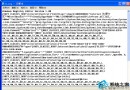
@echo off
netsh interface ip set address name="區域連線" source=dhcp
netsh interface ip set dns name="區域連線" source=dhcp@echo off
netsh interface ip set address "區域連線" static 192.168.0.84 255.255.255.0 192.168.0.254
netsh interface ip set dns "區域連線" 192.168.0.254
netsh interface ip add dns "區域連線" 202.106.196.115 index=2
netsh interface ip add dns "區域連線" 202.106.0.20 index=3"區域連線" 為網卡名稱,可能為 "區域連線 2" 或英文 "Local Area Connection",請依實際修改.bat 或 .cmd,右鍵「以管理員身分執行」生效兩支腳本放入桌面或快捷列,隨時一鍵切換網路環境,告別手動設定煩惱。