開機出現「NTLDR is missing」、「Boot.ini not found」或直接進不入系統?boot.ini 是 XP/2003 開機載入器的核心設定檔,遺失會導致無法定位作業系統分區。本文教您用記事本在幾分鐘內重建標準 boot.ini,讓系統重新開機。
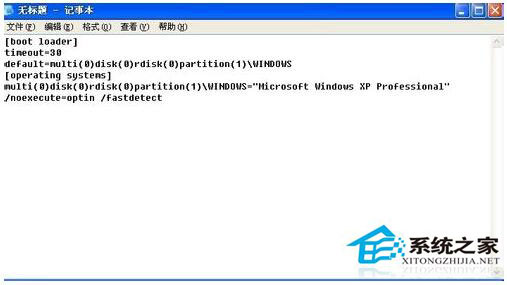
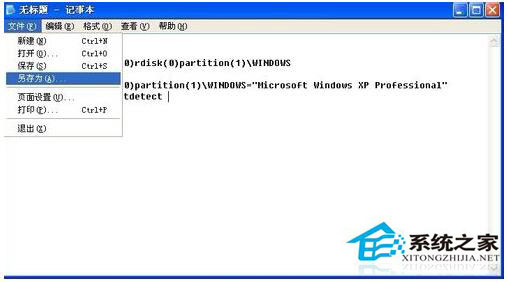
notepad)。[boot loader]
timeout=30
default=multi(0)disk(0)rdisk(0)partition(1)\WINDOWS
[operating systems]
multi(0)disk(0)rdisk(0)partition(1)\WINDOWS="Microsoft Windows XP Professional" /noexecute=optin /fastdetect
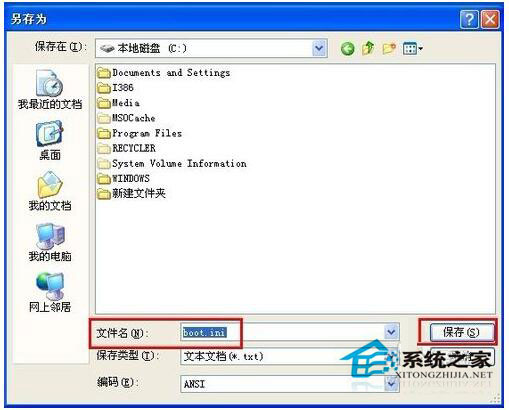
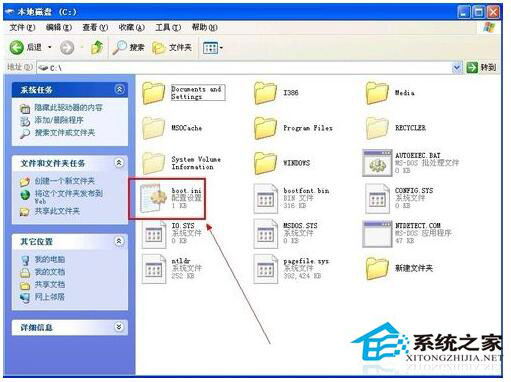
boot.ini → 存檔類型「所有檔案」 → 存檔。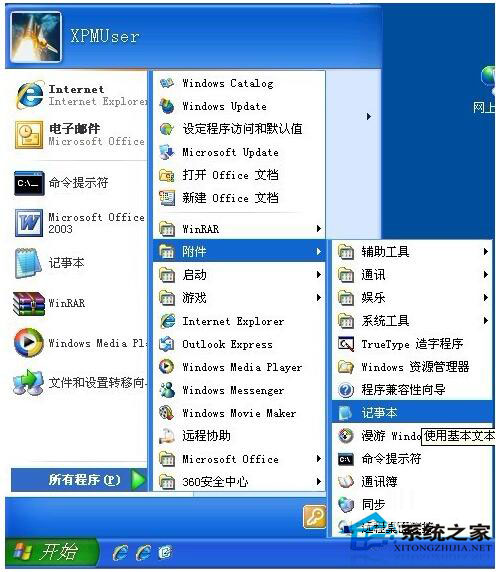
| 參數 | 含義 |
|---|---|
timeout=30 | 開機選單等待秒數,0 為直接進入預設項 |
default=... | 預設開機項目 ARC 路徑 |
multi(0) | IDE/SCSI/SATA 控制器編號 (通常 0) |
disk(0) | 實體磁碟編號 (第一顆 0) |
rdisk(0) | 磁碟機編號 (第一顆 0) |
partition(1) | 分區編號 (第一分區 1,非 0) |
/noexecute=optin | 啟用 DEP (資料執行防護) 選擇性模式 |
/fastdetect | 跳過序列埠/並行埠偵測,加速開機 |
partition(2)。disk(1) / rdisk(1)。bootcfg /list 或 bootcfg /rebuild 自動掃描重建。bootcfg /rebuild → 掃描到 XP 安裝 → 輸入 Y → 載入識別名 (如 "Microsoft Windows XP Professional") → 輸入啟動參數 /noexecute=optin /fastdetect → 完成。無論手動記事本重建或 bootcfg 自動掃描,幾分鐘即可修復遺失的 boot.ini,讓 XP 重獲新生。
Windows 死機也能優化?註冊表四項設定讓系統自動從當機恢復
WinXP 系統磁碟空間管理指南:C 槽瘦身、自有資料外移、軟體安裝非系統盤、桌面清理四大策略
Windows XP 10 大實用冷知識:Ctrl+Z 還原、Shift 刪除、systeminfo、Ctrl+O 隱私上網、破解右鍵禁用、SFC、秒關機、快速拷貝、Win+L 鎖機、禁用迅雷上傳
你不知道的 Windows XP 9 大隱藏秘技:ClearType、systeminfo、命令參數、GPEdit、鎖機捷徑、顯示隱藏元件、ZIP 資料夾、IPv6、任務結束
Windows XP 清除惡意程式碼修改登錄教學:6 大常見症狀對症下藥