WinXP 瀏覽網頁時 Flash 動畫無法顯示,主要原因集中在 Flash Player 未安裝/版本過舊、IE 設定阻擋、安裝檔損毀或流氓軟體破壞。本文提供四大原因針對性解決方案。
原因一:未安裝 Flash Player 或版本過舊
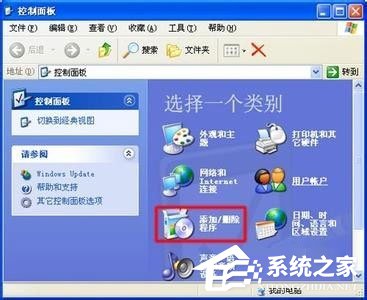
- 「控制台」→「新增/移除程式」檢查是否有 Adobe Flash Player ActiveX
- 若無或版本 < 9.0,至 Adobe 官網下載最新版安裝
原因二:IE 瀏覽器設定阻擋
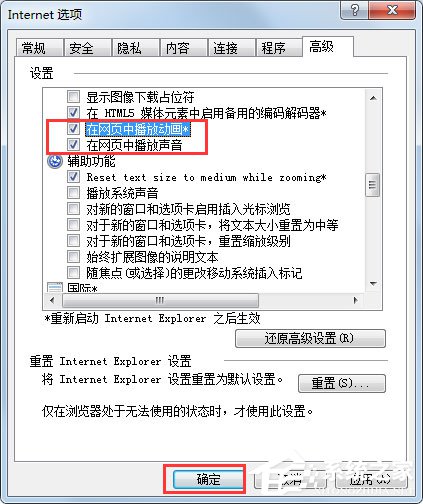
- IE →「工具」→「網際網路選項」→「進階」
- 點擊「還原預設值」
- 確認勾選:「播放網頁中的動畫」、「播放網頁中的聲音」
原因三:Flash Player 安裝檔損毀/安裝失敗
- 安裝系統所有補丁(Windows Update)
- 「新增/移除程式」完整移除舊版 Flash Player
- 刪除
C:\Windows\System32\Macromed\Flash 目錄下的 .ocx 檔案
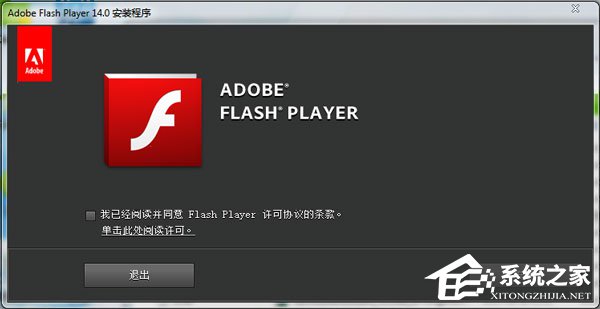
- 重新安裝 Flash Player,若提示失敗選擇「忽略」→重啟電腦→測試網頁


原因四:流氓軟體/惡意增益集破壞
- 使用安全軟體(如 360、電腦管家)完整掃描清理流氓軟體
- 修復 IE 設定與增益集
- 重新安裝 Flash Player
排查順序建議
- 檢查安裝狀態與版本(原因一)
- 重置 IE 進階設定(原因二)
- 完整重裝 Flash Player(原因三)
- 系統安全掃描清理(原因四)
依序執行,可解決 99% WinXP 下 Flash 不顯示問題。注意:Adobe 已於 2020 年停止支援 Flash,現代瀏覽器均已移除支援,建議遷移至 HTML5 技術。