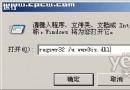
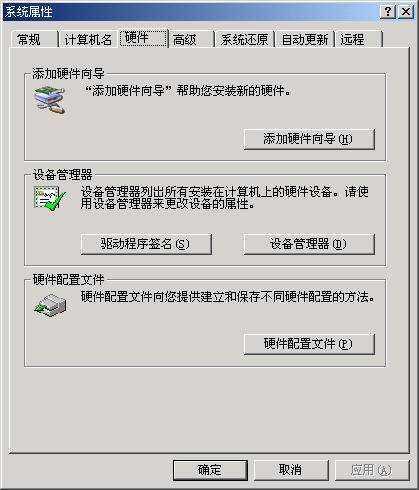
Windows XP 專業版預設遠端桌面僅允許單一使用者登入,第二位管理員連線會登出第一位。透過替換系統檔 termsrv.dll、修改登錄檔啟用多使用者模式、停用系統檔案保護 (SFC)、開放防火牆 3389 埠,可實現多管理員同時遠端登入。
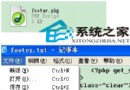
termsrv.dll(支援並行連線版本),解壓備用。C:\WINDOWS\system32\termsrv.dllC:\WINDOWS\$NtServicePackUninstall$\termsrv.dll(SP2 必須)C:\WINDOWS\ServicePackFiles\i386\termsrv.dll(SP2 必須)Windows Registry Editor Version 5.00
[HKEY_LOCAL_MACHINE\SOFTWARE\Microsoft\Windows NT\CurrentVersion\Winlogon]
"SFCDisable"=dword:ffffff9dWindows Registry Editor Version 5.00
[HKEY_LOCAL_MACHINE\System\CurrentControlSet\Control\Terminal Server\Licensing Core]
"EnableConcurrentSessions"=dword:00000001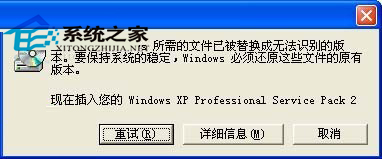
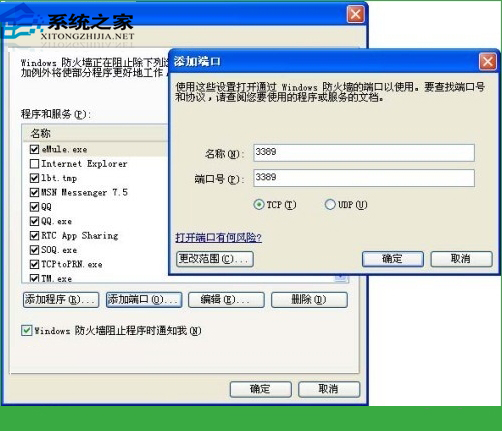
⚠ 風險提示:修改核心系統檔與停用 SFC 會降低系統安全性與穩定性,且違反 Microsoft 授權條款(僅限單一遠端使用者)。生產環境建議使用 Windows Server 版本合法啟用終端機服務 CAL 授權。