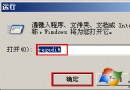
XP 執行 rundll32 netplwiz.dll,UsersRunDll 或 control userpasswords2 可開啟「使用者帳戶」進階介面 (圖1):新增/刪除帳戶、取消勾選「使用者必須輸入使用者名稱和密碼」實現自動登入、「進階」分頁勾選「要求使用者按 Ctrl+Alt+Del」強化登入安全 (如 Win 2003)。但指令過長難記,將其加入控制台即可一鍵呼叫 (圖2)。
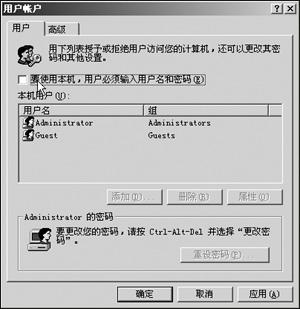
圖1 使用者帳戶進階介面
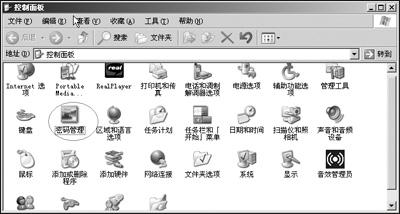
圖2 控制台中的密碼管理圖示
記事本編輯以下內容存為 xx.reg → 雙擊匯入:
Windows Registry Editor Version 5.00

[HKEY_CLASSES_ROOT\CLSID\{98641F47-8C25-4936-BEE4-C2CE1298969D}]
@="密碼管理"

[HKEY_CLASSES_ROOT\CLSID\{98641F47-8C25-4936-BEE4-C2CE1298969D}\DefaultIcon]
@="%SystemRoot%\\System32\\nusrmgr.cpl,1"

[HKEY_CLASSES_ROOT\CLSID\{98641F47-8C25-4936-BEE4-C2CE1298969D}\Shell]

[HKEY_CLASSES_ROOT\CLSID\{98641F47-8C25-4936-BEE4-C2CE1298969D}\Shell\Open]

[HKEY_CLASSES_ROOT\CLSID\{98641F47-8C25-4936-BEE4-C2CE1298969D}\Shell\Open\command]
@="Control Userpasswords2"
@="Add Userpasswords2 to Control Panel"
匯入後控制台即出現「密碼管理」圖示,雙擊直達進階帳戶設定,免記複雜指令。