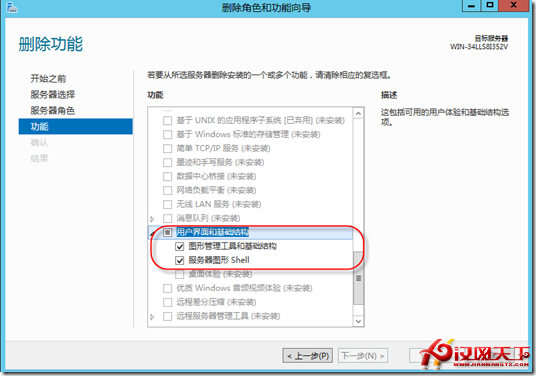
因應舊硬體效能瓶頸,需將 Windows Server 2008 R2 網域控制站遷移至新硬體平台並升級至 Windows Server 2012,保留原有 IP、網域名稱與 FSMO 角色。
| 項目 | 原環境 | 目標環境 |
|---|---|---|
| 作業系統 | Win 2008 R2 | Win 2012 |
| 硬體平台 | Intel | Intel (新機型) |
| FSMO 角色 | CSCODC (原 DC) | CSCODC (新 DC) |
| 網域名稱 | CSCO.V | CSCO.V (不變) |
| IP 位址 | 原有 IP | 原有 IP (不變) |
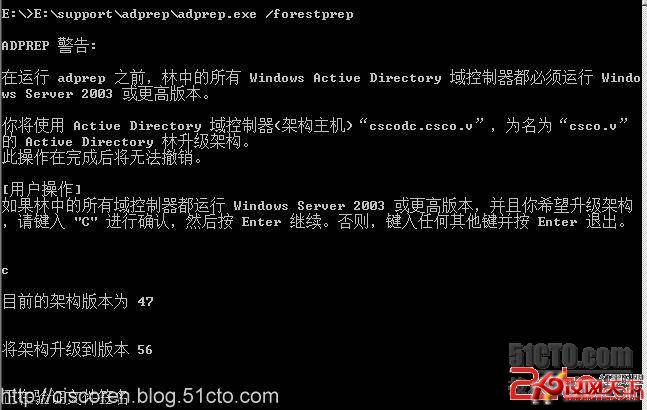
adprep /forestprep (森林層級)adprep /domainprep (網域層級)adprep /rodcprep (RODC 準備)dcpromo 移除 AD DS 角色,原 DC 退出網域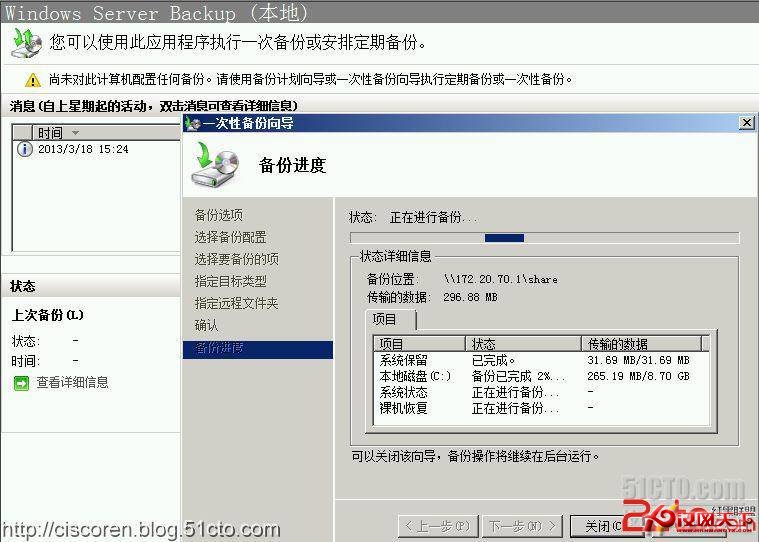



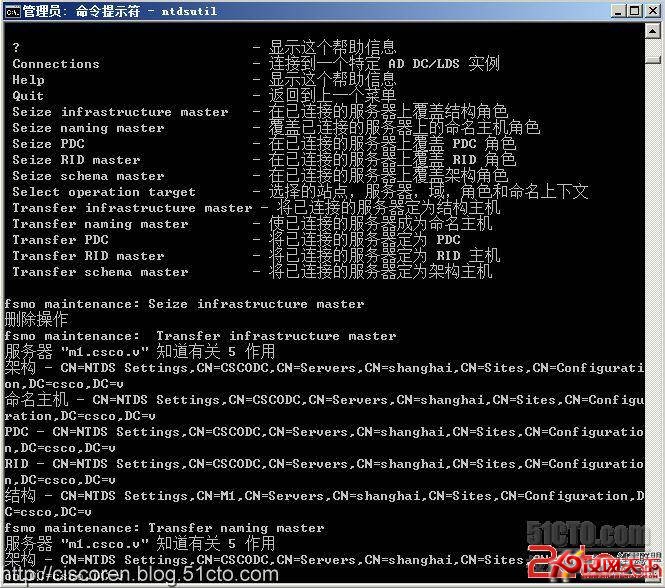
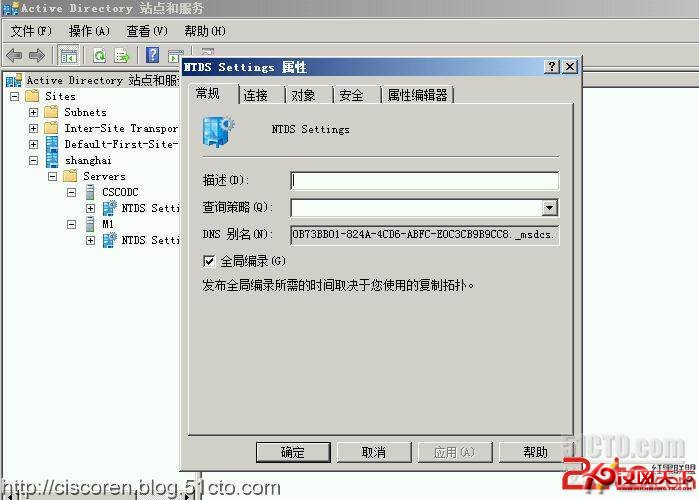
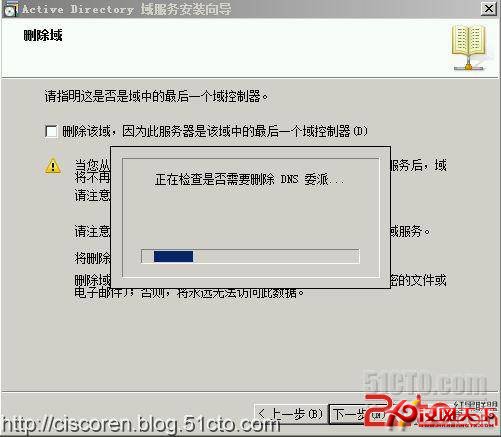
核心原則:先備份、再擴展結構描述、角色轉移暫存、再降級舊、最後升級新,確保網域服務零中斷遷移。
Windows Server 2003 磁碟配額設定教學:限制使用者磁碟使用量
Windows Server 2003 VPN 實作系列 (四):跨區域虛擬機連通性驗證
IIS 同一 IP 架設多網站:TCP 連接埠法與主機標頭法完整比較
如何在 Windows Server 2012 R2 中部署與使用 WSUS
Windows Server 2003 VPN 實作系列 (二):伺服器端 RRAS、NAT 與位址池配置
Windows Server 2003 FTP 複製檔案提示「目前安全性設定不允許從該位置下載檔案」解決方法