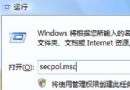
Windows Server 2008 透過 IE 設定 Proxy 伺服器,適用於企業網路統一出口、內容過濾、存取控制場景。本文詳細說明 Proxy 基本設定、分協定 (HTTP/HTTPS/FTP) 進階設定、例外清單 (內部網站直連)、驗證方式。
proxy.corp.local)*.corp.local、192.168.*、intranet、localhost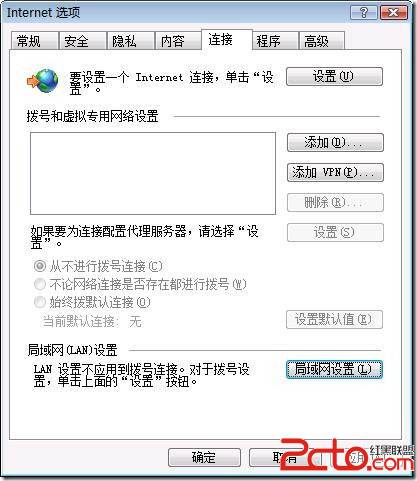
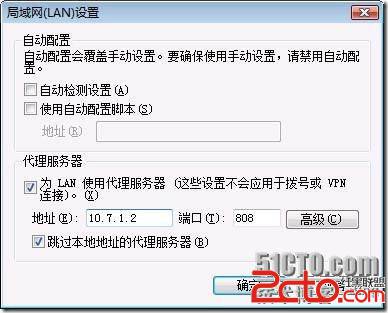
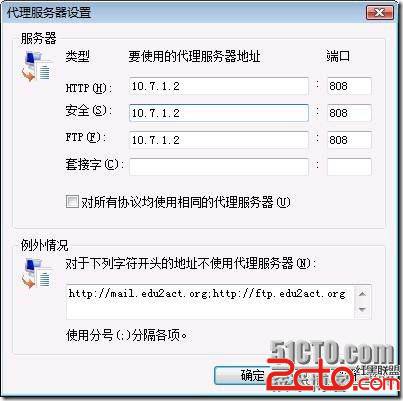
系統層級 Proxy 設定:
- 使用netsh winhttp set proxy proxy-server="proxy.corp.local:8080" bypass-list="*.corp.local;192.168.*"設定 WinHTTP Proxy (適用於 Windows Update、系統服務、.NET 應用)
- 群組原則:使用者設定 → 系統管理範本 → Windows 元件 → Internet Explorer → 「防止變更 Proxy 設定」/「Proxy 伺服器」強制部署
Windows Server 2008 R2 KMS 激活完整指南:金鑰清單、指令步驟與常見錯誤排除
Windows Server 2008 安全防護:關閉網路探索隱藏伺服器、防止資訊洩露
優化 Windows Server 2008 遠端桌面體驗:提高顯示優先序、禁用 Session 0、多監視器延伸、自訂解析度、暫停非必要服務
Windows Server 終端服務實現遠端管理完整指南:多使用者同時連線、權限控制、域環境部署
Windows Server 2003 遷移至 2008 完整實戰指南
進階防護:修補 Windows Server 2008 防火牆註冊表被竄改風險
Windows Server 2008 (全功能版) 新增 Hyper-V 角色圖文步驟與虛擬交換器設定
Windows Server 2008 網路鄰居常見五大故障與解決方案(找不到圖示、看不到共享、工作組消失、無法開啟共享、回應緩慢)