Windows XP Windows 7 Windows 2003 Windows Vista Windows 綜合教學 Linux 系統教學
Windows 10 Windows 8 Windows 2008 Windows NT Windows Server 電腦軟體教學

Windows 透過 Samba 存取 Linux 共享資料夾完整設定教學

編輯:系統常見問題解答

開發時常需在 Windows 編碼、Linux 測試,透過 Samba 讓 Windows 直接掛載 Linux 目錄,免去反覆複製檔案之苦。

Linux 端:安裝與設定 Samba

# 檢查是否已安裝
rpm -qa | grep samba

# 未安裝則安裝 (CentOS/RHEL)
yum install samba -y
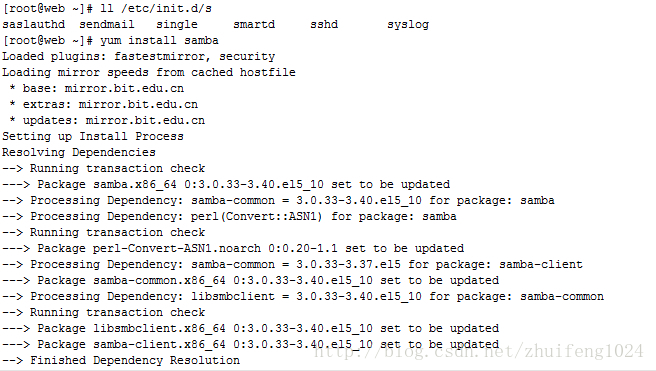
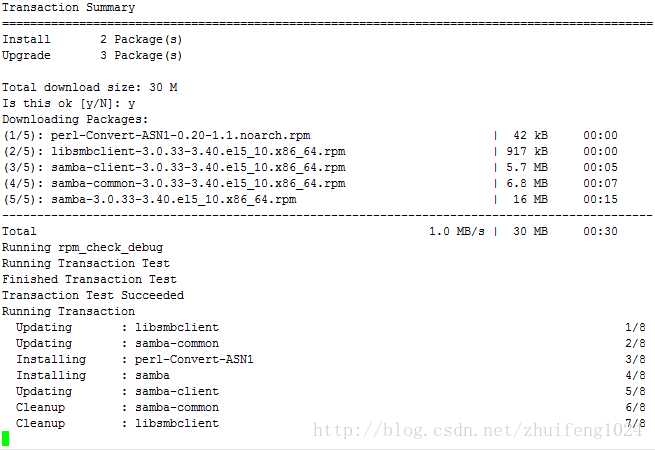
檢查 Samba 安裝

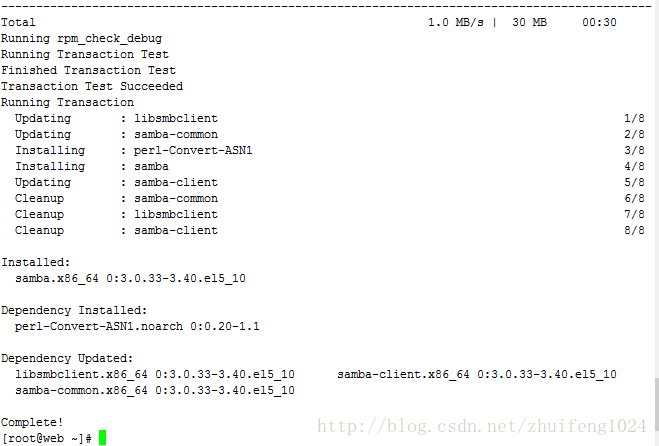
yum 安裝 Samba

安裝完成

修改設定檔 /etc/samba/smb.conf

檔案末尾新增共享區段:

[share]
path = /var/test
writable = yes
public = yes

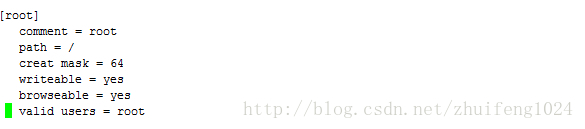
smb.conf 編輯

新增共享設定

重啟服務並驗證

service smb restart
# 或
systemctl restart smb nmb
service smb status  # 確認 running

重啟 Samba 服務

Windows 端:存取共享

  1. 確認 Windows 與 Linux 同網段(例:Linux IP 192.168.0.3)
  2. 檔案總管網址列輸入:\\192.168.0.3
  3. 輸入 Linux 帳號密碼(如 root)
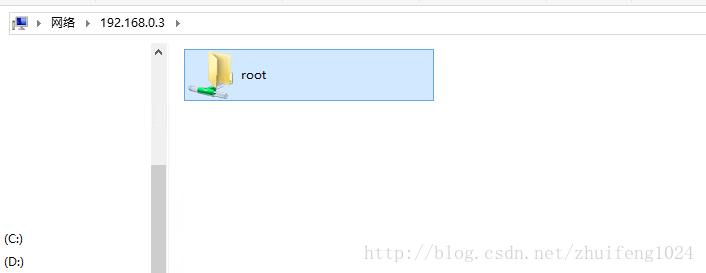
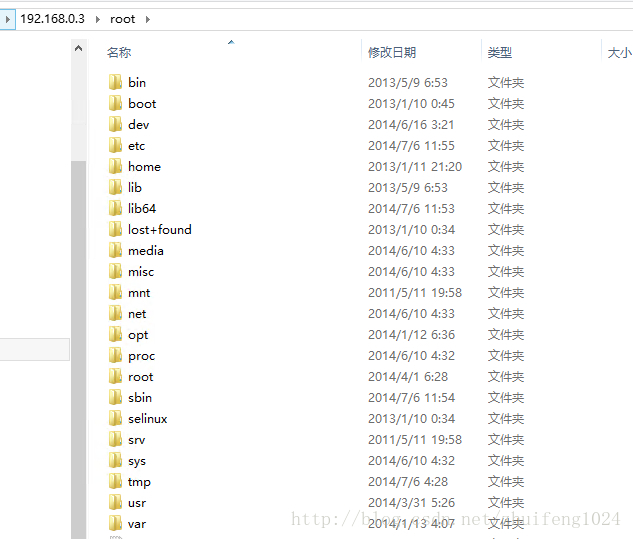
  4. 即可看到 share 資料夾,進入即可讀寫 Linux 檔案

Windows 存取 Samba 登入

瀏覽 Linux 檔案

安全性建議

  • 生產環境請建立專用 Samba 帳號(smbpasswd -a user),避免使用 root
  • 限制 hosts allow 僅信任網段
  • 關閉不需要的 public = yes,改用 valid users
  • SELinux 環境需設定 setsebool -P samba_export_all_rw on

Samba 打通 Windows/Linux 檔案互通,是跨平台開發、測試、部署的基礎設施之一。

Copyright © Windows教程網 All Rights Reserved