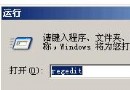
重裝 Windows XP/2000 系統後,若在「輸入法」設定點擊「設定」按鈕彈出「偵測到不相容的鍵盤驅動程式,該對話方塊已被停用」錯誤,通常是因為註冊表中 HKEY_LOCAL_MACHINE\SYSTEM\CurrentControlSet\Control\Keyboard Layouts 鍵值遺失或損毀。本文提供兩種修復方案:
HKEY_LOCAL_MACHINE\SYSTEM\CurrentControlSet\Control\Keyboard Layouts。KeyboardLayouts.reg。若無參考機,可將下列完整鍵值內容複製到記事本,存為 kb.reg(編碼選 ANSI 或 UTF-16 LE),雙擊匯入後重開機:
Windows Registry Editor Version 5.00

[HKEY_LOCAL_MACHINE\SYSTEM\CurrentControlSet\Control\Keyboard Layouts]
; 以下為常見鍵盤版面配置鍵值(節錄關鍵項目,完整版請見原文)
[HKEY_LOCAL_MACHINE\SYSTEM\CurrentControlSet\Control\Keyboard Layouts\00000404]
"Layout File"="KBDUS.DLL"
"Layout Text"="中文 (繁體) - 美式鍵盤"
"Layout Display Name"="@%SystemRoot%\\system32\\input.dll,-5065"

[HKEY_LOCAL_MACHINE\SYSTEM\CurrentControlSet\Control\Keyboard Layouts\00000804]
"Layout File"="KBDUS.DLL"
"Layout Text"="中文 (簡體) - 美式鍵盤"
"Layout Display Name"="@%SystemRoot%\\system32\\input.dll,-5072"

[HKEY_LOCAL_MACHINE\SYSTEM\CurrentControlSet\Control\Keyboard Layouts\E0010404]
"Layout File"="KBDUS.DLL"
"Layout Text"="中文 (繁體) - 注音"
"Layout Display Name"="@%SystemRoot%\\system32\\input.dll,-5066"
"IME file"="phon.ime"

[HKEY_LOCAL_MACHINE\SYSTEM\CurrentControlSet\Control\Keyboard Layouts\E0010804]
"Layout File"="KBDUS.DLL"
"Layout Text"="中文 (簡體) - 全拼"
"IME File"="winpy.ime"
"Layout Display Name"="@%SystemRoot%\\system32\\input.dll,-5073"

[HKEY_LOCAL_MACHINE\SYSTEM\CurrentControlSet\Control\Keyboard Layouts\E00E0804]
"Layout File"="kbdus.dll"
"Layout Text"="中文 (簡體) - 微軟拼音輸入法 3.0"
"IME File"="pintlgnt.ime"
"Layout Display Name"="@%SystemRoot%\\system32\\input.dll,-5091"
"System IME File"="C:\\WINDOWS\\system32\\Pintlgnt.ime"
注意:上方僅列出中文相關關鍵鍵值,完整腳本包含 60+ 種語言鍵盤配置,建議使用方法一從正常系統匯出完整鍵值最保險。
原理說明:此錯誤發生原因是系統載入輸入法設定時,讀取 Keyboard Layouts 下的 IME 檔案路徑與顯示名稱失敗。匯入正確鍵值即可恢復輸入法管理功能。