Windows 8 開始畫面釘選過多 App 會顯得雜亂。取消釘選僅移除磚圖示,不會解除安裝程式,App 仍可在「應用程式檢視」或搜尋中找到,隨時可重新釘選。
操作步驟
- 在開始畫面長按/右鍵點擊欲移除的磚(可多選)。
- 點擊下方應用列的「從『開始』畫面取消釘選」。
- 選取的磚即從開始畫面移除,但程式本體保留。
補充說明
- 清除選取:點擊開始畫面空白處,或點擊「自訂」按鈕。
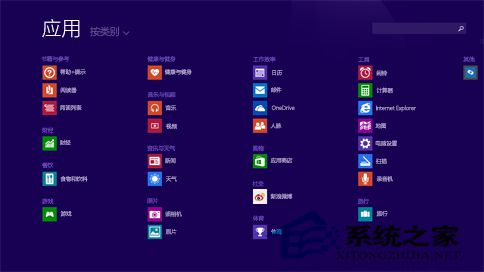
- 取消釘選 ≠ 解除安裝。解除安裝需在「應用程式檢視」中右鍵選擇「解除安裝」。
- 定期整理開始畫面,只釘選高頻率 App,搭配分組命名,大幅提升視覺辨識與啟動速度。
此功能同樣適用於 Windows 8.1 及 Windows 10 開始選單的磚區域。