想確認自家電腦實際安裝了多少記憶體(RAM),以決定是否需要加購記憶體模組?Windows 7 內建系統資訊頁面可快速查看,操作步驟如下:
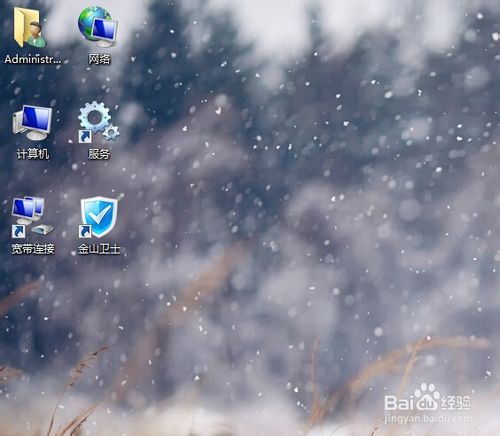
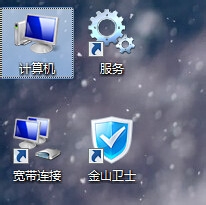
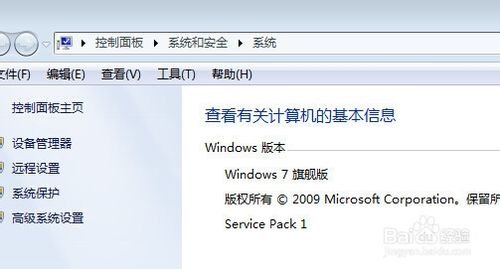
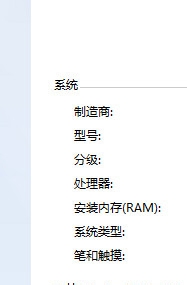

確認記憶體容量後,若發現容量不足影響多工效能,可依主機板規格加購相容的 DDR3/DDR4 記憶體模組升級。
Win7 一鍵升級 Win8.1?OneKey Ghost 還原 Win8.1 GHO 鏡像全自動完成(備份 C 槽資料先行)
Win10 無法解除安裝程式提示「請等待目前程式完成解除安裝」?登出重新登入 或 結束 dllhost.exe 處理程序兩法解決
Win8.1 修復「無法連線到此網路」Wi-Fi 連線失敗五大方案
Win7/XP 禁用/恢復控制台、註冊表編輯器、群組原則:註冊表鍵值與 gpedit.msc 雙重管控
Windows Server 2003 域控制器缺少 SYSVOL 與 NETLOGON 共享完整排解指南
Windows 10 Build 10049 預覽版出現藍屏死機 啟動桌面卡住無法顯示