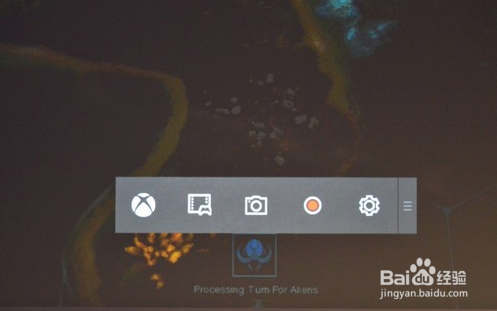
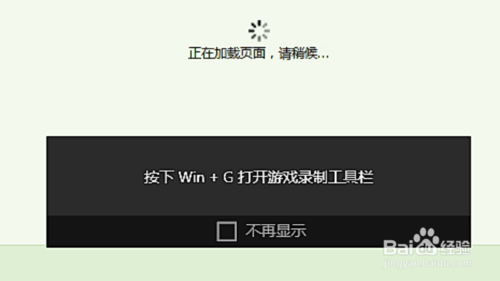
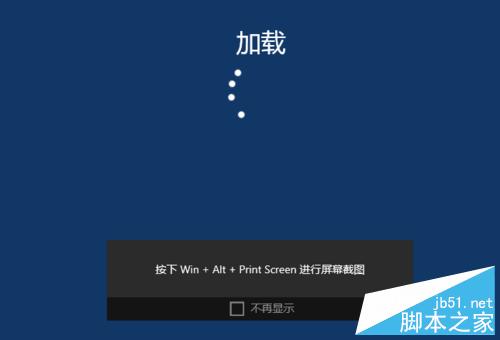
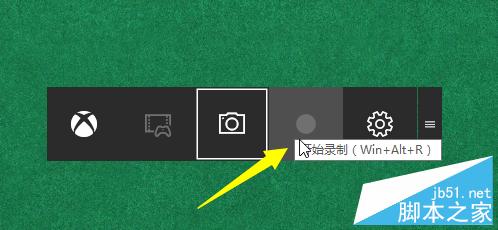
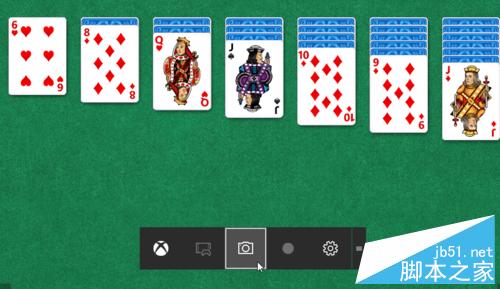
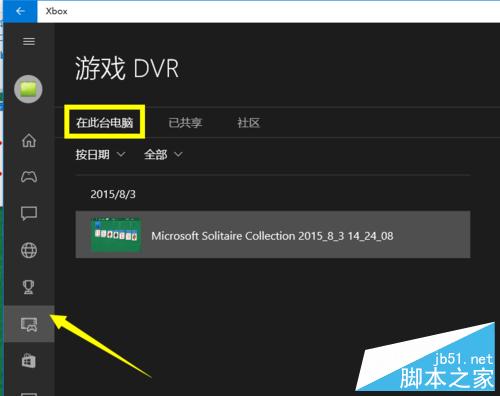
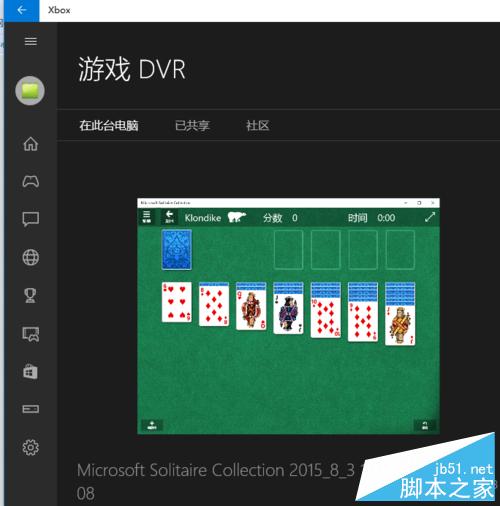
Win10 內建 Xbox Game Bar (Win+G),不僅能錄製 Xbox 串流遊戲,也支援任意 PC 遊戲錄影、截圖,完全免費無浮水印。
按 Win + G 喚出工具列,滑鼠點擊截圖/錄影/設定圖示即可操作,適合不習慣快捷鍵的玩家。
玩家實測錄製品質優異,有需求者請直接體驗。
Windows 作業系統發展完整史:從 Windows 1.0 到 Windows 8/Server 2012 的三十年演進
Win10 設定寬帶自動撥號連線,開機無需手動點擊「連線」
Win10 預覽版 14257 簡體中文專業版 64 位 ISO 鏡像下載(百度網盤)
Win10 應用商店更新錯誤 0x803F8001 解決方案:卸載重裝跳過更新流程
Windows Azure Pack 核心角色完整解析:租用戶/管理員入口、API、網站、虛擬機、服務匯流排、自動化
Win8 建立電源管理捷徑:雙擊一鍵切換平衡/高效能/省電模式
Win10 週年更新發布預覽版 14393.82 累積更新 KB3176932 推送(PC 端)
Windows 10 螢幕亮度調節教學:四步驟透過個人化設定調整護眼亮度