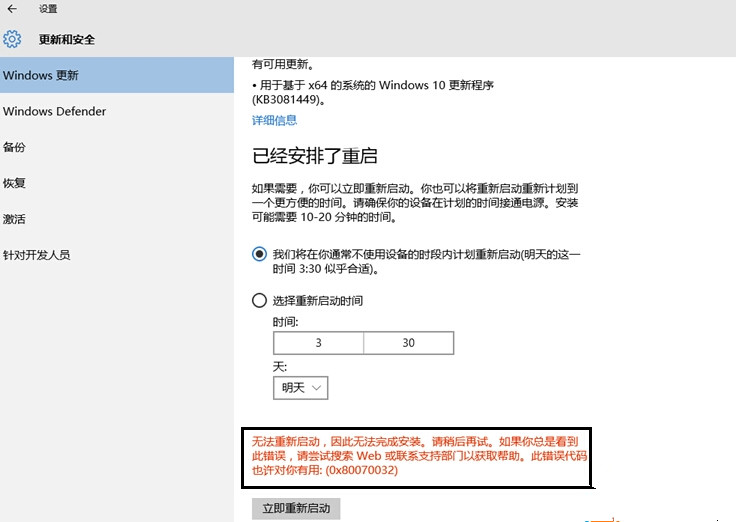
許多 Windows 10 使用者在安裝累積更新 KB3081449 時,遭遇錯誤代碼 0x80070032,導致更新失敗反覆重試。此錯誤通常源於 Windows Update 元件損毀或系統映像檔不一致。本文提供「清除更新快取」與「DISM 修復系統映像」兩階段解決方案,依序操作即可大幅提高成功率。
net stop wuauserv 停止 Windows Update 服務。C:\Windows\SoftwareDistribution,刪除 Download 與 DataStore 兩個資料夾內的所有檔案(資料夾本身保留)。net start wuauserv 重新啟動服務。若更新仍失敗,表示系統元件存儲可能受損,需以 DISM 工具離線修復:
Dism /Online /Cleanup-Image /CheckHealth
Dism /Online /Cleanup-Image /ScanHealth
Dism /Online /Cleanup-Image /RestoreHealth
補充說明:
• CheckHealth 僅快速檢查是否有損毀標記;
• ScanHealth 會掃描元件存儲完整性(耗時較久);
• RestoreHealth 會自動從 Windows Update 下載健康檔案替換損毀元件。
若網路環境受限,可加入 /Source:wim:D:\sources\install.wim:1 /LimitAccess 參數指定安裝媒體作為修復來源(D 為安裝媒體磁碟機代號)。