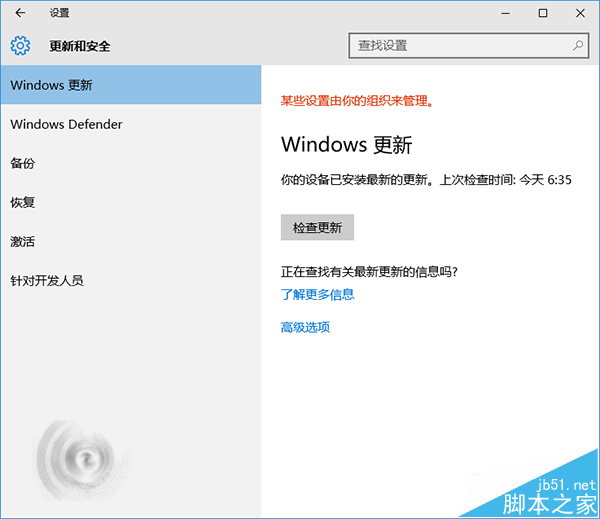
Win10 「Windows Update」機制大幅改變:預設自動下載安裝所有更新、Modern 風格介面。但實際體驗中,下載緩慢、安裝卡頓、失敗甚至需重啟才能恢復等問題頻發,TH2 正式版仍未根治。本文提供經驗證有效的「重置更新服務」方案,徹底解決更新不順暢。
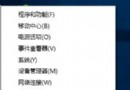
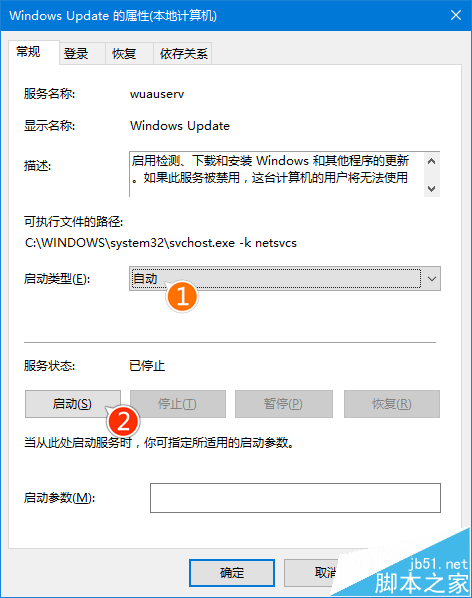
services.msc → 回車C:\Windows\SoftwareDistribution 為 SoftwareDistribution.old (或 SDfolder)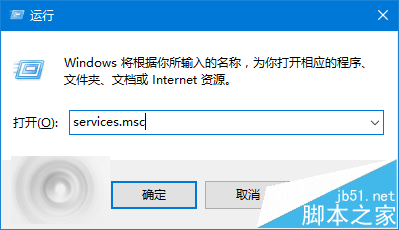
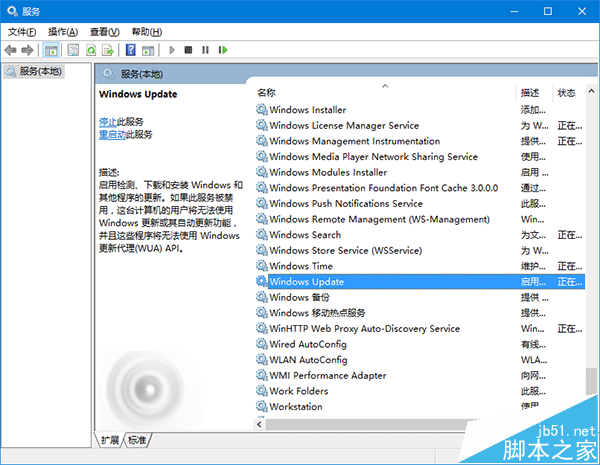
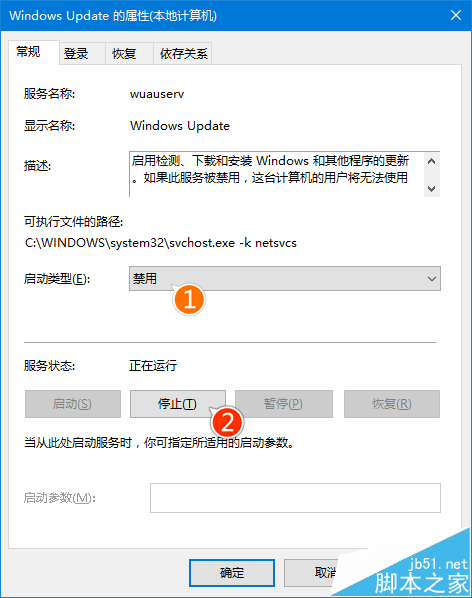
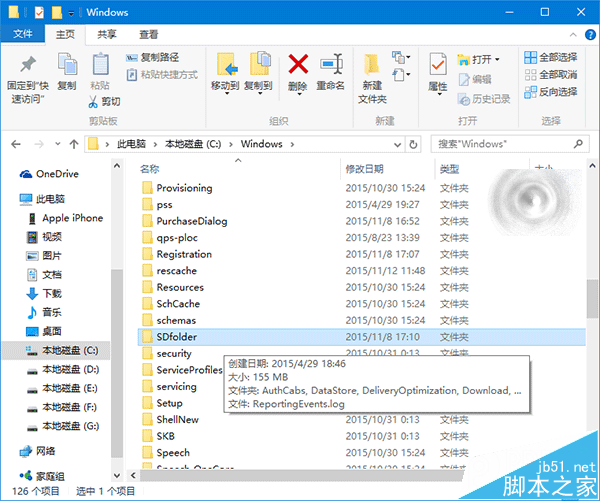
SoftwareDistribution 資料夾存儲更新下載快取、安裝臨時文件、更新歷史資料庫。長期累積導致:
重命名強制重建乾淨目錄,配合服務重啟重置內部狀態,相當於給 Windows Update 做「深度清理+冷重啟」。
net stop wuauserv
net stop bits
ren C:\Windows\SoftwareDistribution SoftwareDistribution.old
net start bits
net start wuauserv
期待微軟持續打磨 Windows Update 體驗,早日達到無需用戶手動干預的可用水準。
Windows Server 2003 域控制器缺少 SYSVOL 與 NETLOGON 共享完整排解指南
Win10 Mobile 10581 更新內容完整彙總:Bug 修復、效能提升、Hey Cortana 恢復、社交應用發圖修復
Win7 開機自檢報錯「Floppy disk fail」完整原因分析與解決方案
Win10 Chrome 首頁被 2345 篡改怎麼辦?Windows 清理助手「故障修復」→ 修復 IE 首頁為 about:blank 解決
Win10 RS2 Build 15002首發高DPI完美支持:開始菜單文件夾分組、系統級DPI縮放、多顯示器智能適配
Win10 資源快速存取五大技巧:桌面圖示、資源管理器、工具列自訂全攻略