Windows 註冊編輯器 (regedit) 手動修改機碼值步驟繁瑣且易出錯。使用 .reg 註冊檔來源檔案 可將多項註冊變更封裝為單一檔案,雙擊即可匯入,支援新增機碼、修改值、刪除機碼,極適合系統部署、重灌後快速套用個人化設定、跨電腦同步配置。本文詳細說明 .reg 檔案語法結構、建立流程,並提供 5 個實用範例 (含完整程式碼) 可直接複製使用。
Windows Registry Editor Version 5.00

; 註解行以分號開頭

[HKEY_CURRENT_USER\Software\MyApp\Settings]
"ValueName"="String Data"
"DwordValue"=dword:00000001
"BinaryValue"=hex:01,02,03,04
"MultiStringValue"=hex(7):41,00,42,00,00,00,43,00,00,00

; 刪除機碼:在機碼路徑前加減號
; [-HKEY_CURRENT_USER\Software\MyApp\Settings]

; 刪除值:值名稱後加減號
; [HKEY_CURRENT_USER\Software\MyApp\Settings]
; "ValueToDelete"=-
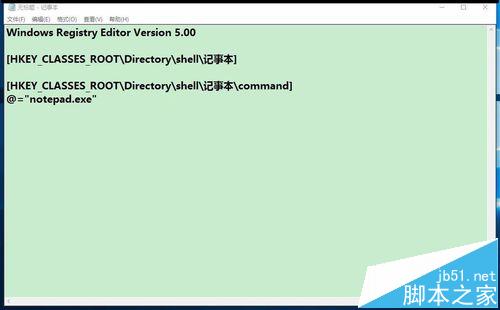
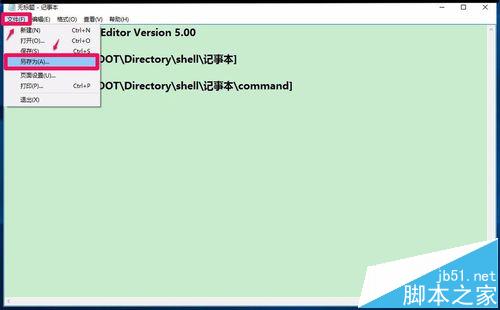
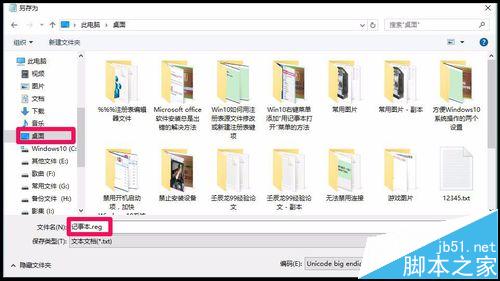
Windows Registry Editor Version 5.00 與空行)。MySettings.reg (副檔名 .reg) → 儲存類型:所有檔案 → 編碼:ANSI 或 UTF-16 LE (含 BOM)。Windows Registry Editor Version 5.00
[HKEY_CLASSES_ROOT\Directory\shell\記事本\command]
@="notepad.exe"

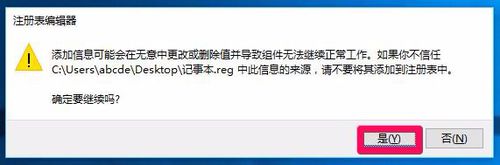
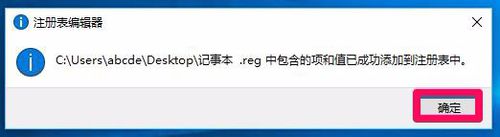
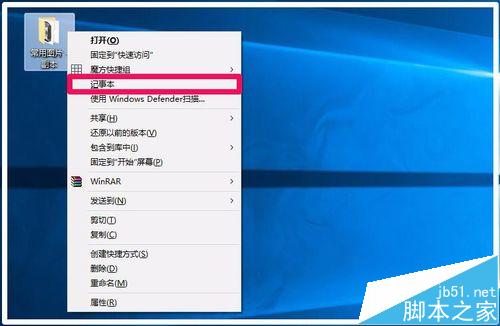
Windows Registry Editor Version 5.00

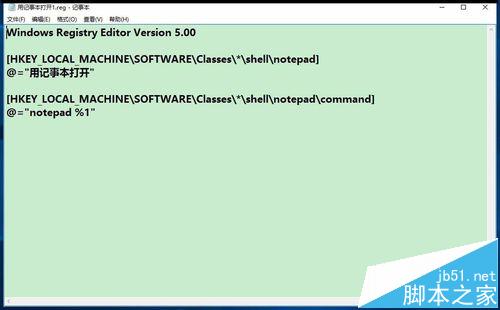
[HKEY_LOCAL_MACHINE\SOFTWARE\Classes\*\shell\notepad]
@="用記事本開啟"

[HKEY_LOCAL_MACHINE\SOFTWARE\Classes\*\shell\notepad\command]
@="notepad %1"
Windows Registry Editor Version 5.00

[HKEY_LOCAL_MACHINE\SOFTWARE\Microsoft\Windows\CurrentVersion\Explorer\Advanced\Folder\Hidden\SHOWALL]
"CheckedValue"=dword:00000001
"DefaultValue"=dword:00000002
"HKeyRoot"=dword:80000001
"Id"=dword:00000002
"RegPath"="Software\\Microsoft\\Windows\\CurrentVersion\\Explorer\\Advanced"
"Text"="@shell32.dll,-30500"
"Type"="radio"
"ValueName"="Hidden"
Windows Registry Editor Version 5.00

[HKEY_CURRENT_USER\SOFTWARE\Microsoft\Windows\CurrentVersion\Policies\Explorer]
"NoDriveTypeAutoRun"=dword:00000091
"NoTrayContextMenu"=dword:00000001
"NoDrives"=hex:00
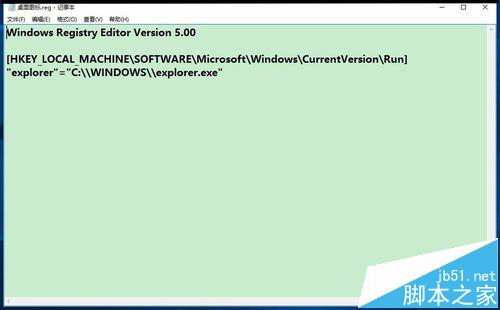
Windows Registry Editor Version 5.00

[HKEY_LOCAL_MACHINE\SOFTWARE\Microsoft\Windows\CurrentVersion\Run]
"explorer"="C:\\WINDOWS\\explorer.exe"
D:\RegBackups\) 分類儲存:ContextMenu\、FolderOptions\、DriveLetters\、ExplorerFixes\、SystemTweaks\。ContextMenu_Notepad_v20240115.reg。regedit /s "D:\RegBackups\ContextMenu_Notepad.reg" (適用登入腳本/MDM 部署)。regedit /e "Backup_HKCU_Software.reg" "HKEY_CURRENT_USER\Software"。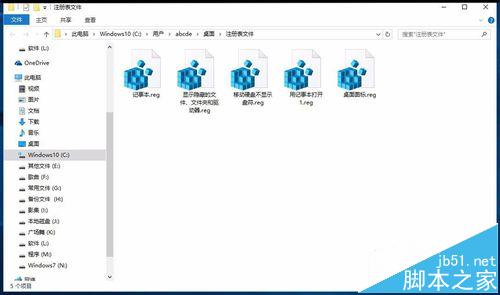
HKEY_LOCAL_MACHINE 需系統管理員權限 (UAC 提示)。