Windows 10 使用者常遇到精心排列的桌面圖示在重開機、登出/登入、或更新後自動回到預設排列 (靠左對齊、自動排列),甚至開啟「自動排列圖示」核取方塊無法取消。根因為 HKEY_CLASSES_ROOT\CLSID\{42aedc87-2188-41fd-b9a3-0c966feabec1}\InProcServer32 註冊鍵值被修改為錯誤的 DLL 路徑 (windows.storage.dll 位置錯誤) 或權限不足導致 Explorer 無法正確寫入圖示位置資訊。透過修正權限並修正數值即可永久解決。
regedit → Enter。HKEY_CLASSES_ROOT\Wow6432Node\CLSID\{42aedc87-2188-41fd-b9a3-0c966feabec1}\InProcServer32Administrators → 「檢查名稱」→ 確定 → 勾選「取代子容器和物件的擁有者」→ 套用。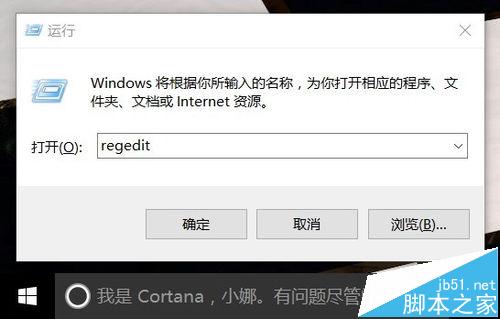
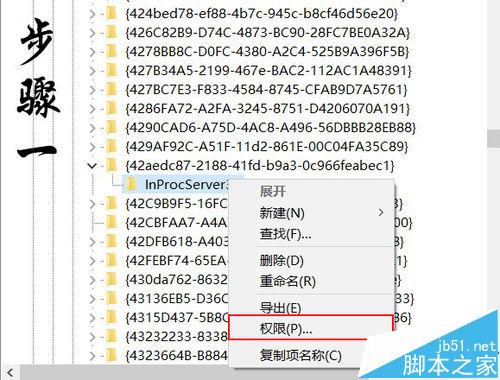
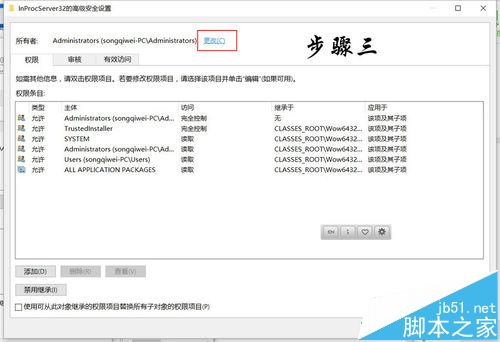
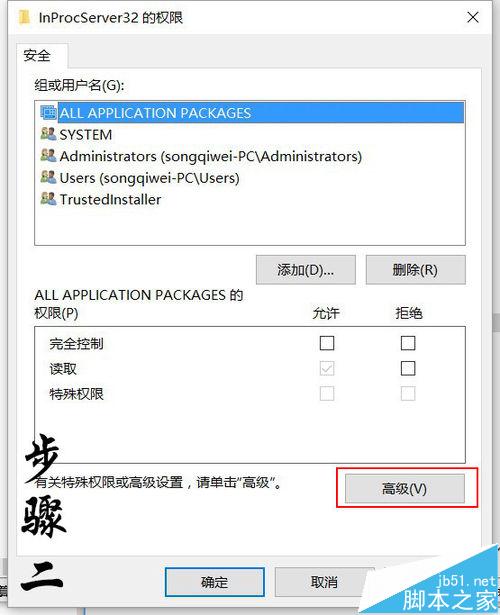
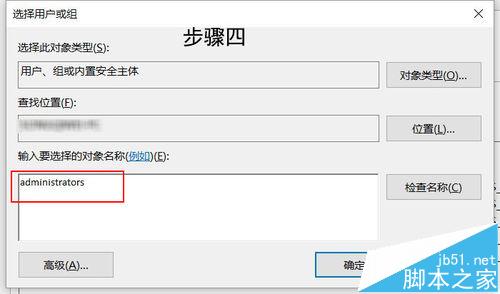
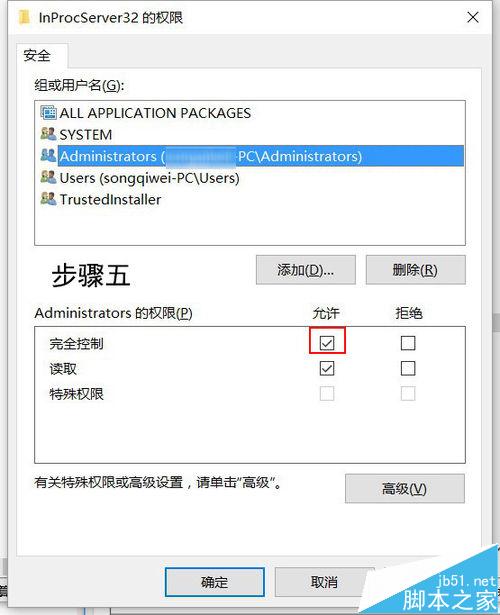
%SystemRoot%\System32\windows.storage.dll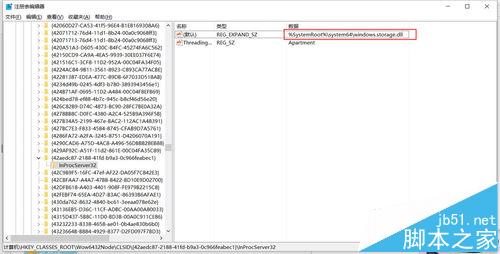
HKEY_CLASSES_ROOT\CLSID\{42aedc87-2188-41fd-b9a3-0c966feabec1}\InProcServer32%SystemRoot%\System32\windows.storage.dll登出並重新登入,或重新開機。桌面圖示位置、排列設定應能正常保存,「自動排列圖示」核取方塊可正常切換。
CLSID {42aedc87-2188-41fd-b9a3-0c966feabec1} 對應 Shell Folder View 介面,負責桌面/資料夾檢視設定 (排列、分組、篩選、圖示位置) 的持久化儲存。InProcServer32 指定實作此介面的 DLL。正確路徑為 %SystemRoot%\System32\windows.storage.dll。若路徑錯誤 (如指向不存在的 System64) 或權限不足導致無法載入/寫入,Explorer 會退回預設行為 (自動排列、不保存位置)。
32 位元 Windows 僅需修正 HKEY_CLASSES_ROOT\CLSID\{...}\InProcServer32 一組機碼。若僅修正 64 位元系統的 Wow6432Node 而未修正原生 64 位元機碼 (或反之),32 位元/64 位元混合環境下仍會出現問題,建議兩組皆修正。
$clsid = "HKEY_CLASSES_ROOT\CLSID\{42aedc87-2188-41fd-b9a3-0c966feabec1}\InProcServer32"
$clsid32 = "HKEY_CLASSES_ROOT\Wow6432Node\CLSID\{42aedc87-2188-41fd-b9a3-0c966feabec1}\InProcServer32"
$correct = "%SystemRoot%\System32\windows.storage.dll"

foreach ($path in $clsid, $clsid32) {
    if (Test-Path $path) {
        Set-ItemProperty -Path $path -Name "(Default)" -Value $correct -Type ExpandString
        Write-Host "Fixed: $path"
    } else {
        Write-Warning "Path not found: $path"
    }
}
# 重新啟動 Explorer 立即生效
Stop-Process -Name explorer -Force
%SystemRoot%\System32\windows.storage.dll。單改數值不給權限會存取被拒;單給權限不改數值路徑仍錯誤。