Windows 10 Edge 瀏覽器內建網頁筆記功能,可直接在網頁塗鴉、加入文字筆記,並一鍵分享同步至 OneNote。
操作流程
- Edge 開啟網頁,右上角點選「建立網頁筆記」圖示 (筆尖狀)。
- 工具列出現:選擇「螢光筆」在網頁內容塗畫重點。
- 點選「加入輸入的筆記」在塗畫處點擊輸入文字說明。
- 點選「剪輯」工具,拖曳選取欲保留區域。
- 點選工具列右側「分享」按鈕,選擇 OneNote。
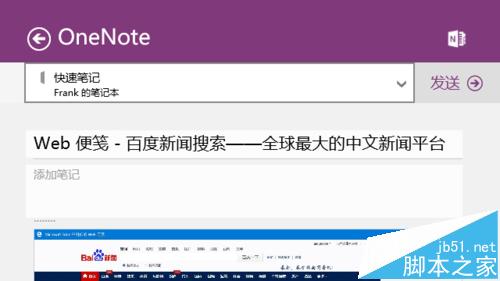
- OneNote 側邊欄開啟,內容已包含網頁標題與筆記標記,點選「傳送」。
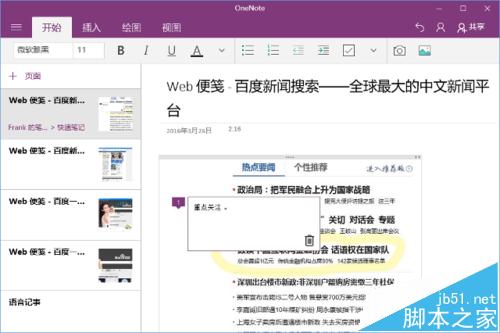
- 開啟 OneNote 應用程式,即可看到同步的筆記項目,可進一步編輯整理。






相關推薦: OneNote 2010 分區密碼修改、Win10 OneNote 便箋功能、OneNote 多層資料夾建立法、Edge 塗鴉筆記詳細用法。