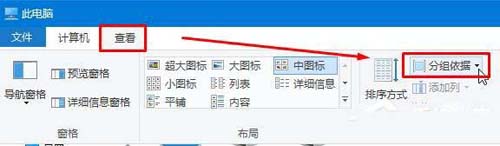
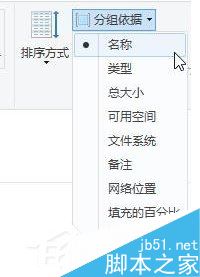
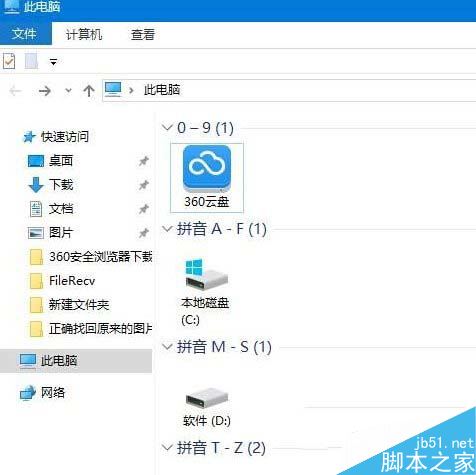
Windows 10 的「此電腦」視窗中,磁碟機圖示預設可能雜亂無章。透過「群組依據」功能,可依名稱、類型、總大小等屬性自動分類排序,讓磁碟一目了然。
設定完成後,磁碟機會依選擇條件自動分群顯示(如:硬碟、可移動裝置、網路磁碟機分開群組),方便快速辨識。此設定僅影響目前視窗,若要預設套用可在「資料夾選項」中設定。
Win10 安裝搜狗輸入法完整教學:官網下載 v7.8、取消廣告選項、Ctrl+Shift 切換
Win10 輸入法消失只能輸英文?一條指令 ctfmon.exe 重啟輸入法即刻修復
Win10 顯示照片縮圖設定:取消「永遠顯示圖示」恢復縮圖預覽
Win8 原裝系統下載地址圖文教學:MSDN 官方 ISO 獲取與驗證全流程
Win10 Build 10074 最新預覽版:Aero 特效回歸,開始選單與工作列加入背景模糊效果
Win10 禁止顯示卡驅動程式自動更新?系統進階設定一鍵關閉,改用手動更新更安心
Win10 開始選單磚塊背景顏色與圖示自訂教學:XML + 快取清除實作
Windows 8/8.1 修改視窗背景顏色被限制?群組原則解除「防止變更顏色和外觀」限制