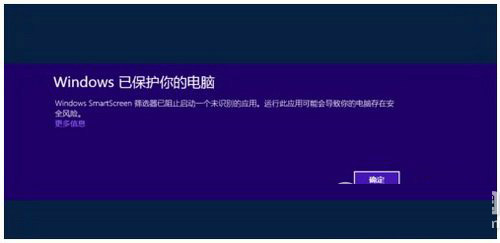
執行未簽名或低信譽程式時,Windows SmartScreen 會彈出「Windows 已保護你的電腦」警告,雖點擊「更多資訊」仍可運行,但頻繁彈窗影響體驗。本文介紹通過操作中心徹底關閉 SmartScreen 篩選器的方法。
關閉步驟
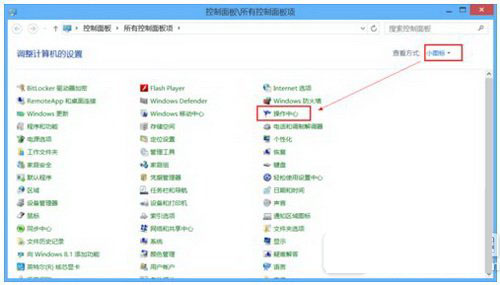
- 開啟「控制面板」→ 視圖模式選「小圖示」→ 點擊「安全性與維護」(Win10)或「操作中心」(Win8/7)
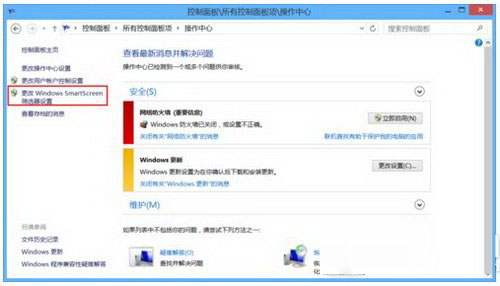
- 左側點擊「變更 Windows SmartScreen 設定」
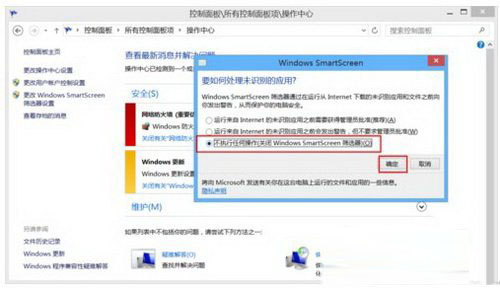
- 選擇第三項:「不執行任何動作 (關閉 Windows SmartScreen 篩選器)」
- 點擊「確定」保存,後續執行未簽名程式不再彈出警告
安全性提醒
- 關閉 SmartScreen 會降低對惡意軟體、釣魚網站的二次防禦能力
- 建議僅在確信軟體來源安全(如自行編譯、信任開發者)時暫時關閉
- 日常使用建議保持「需要管理員核准」或「警告」模式啟用
- 配合 Windows Defender 即時防護可維持基礎安全防線