Windows 7 筆電可透過 netsh 指令手動建立虛擬 WiFi 熱點,搭配 ICS 網路共享,讓手機、平板透過筆電上網,無需購買無線路由器。
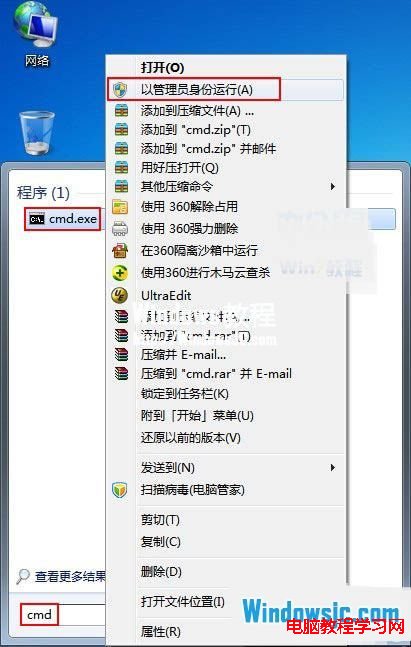
1、開始 → 搜尋 cmd → 右鍵「以系統管理員身分執行」。
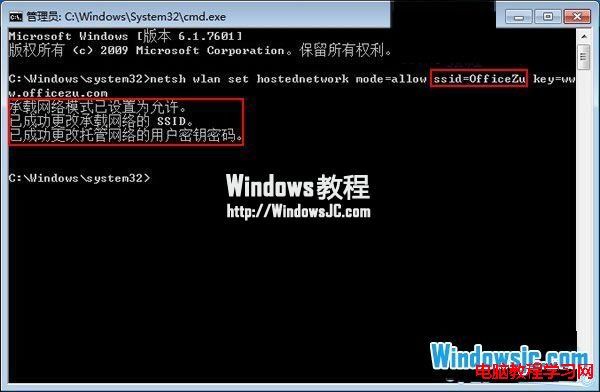
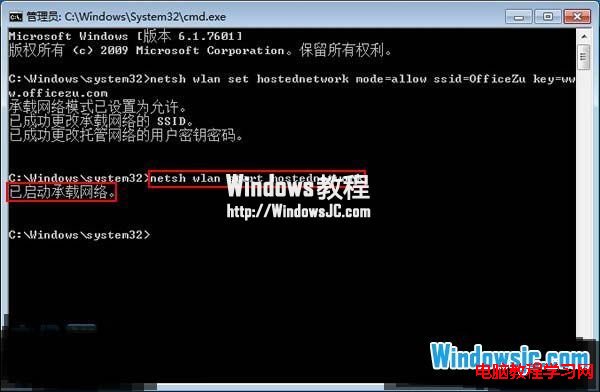
2、建立託管網路:netsh wlan set hostednetwork mode=allow ssid=OfficeZu key=www.officezu.com (ssid=熱點名稱, key=密碼)。
3、啟動熱點:netsh wlan start hostednetwork。
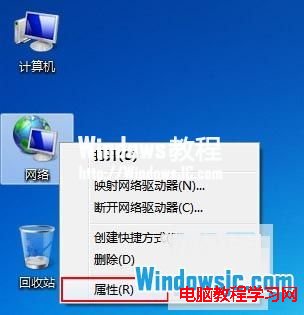
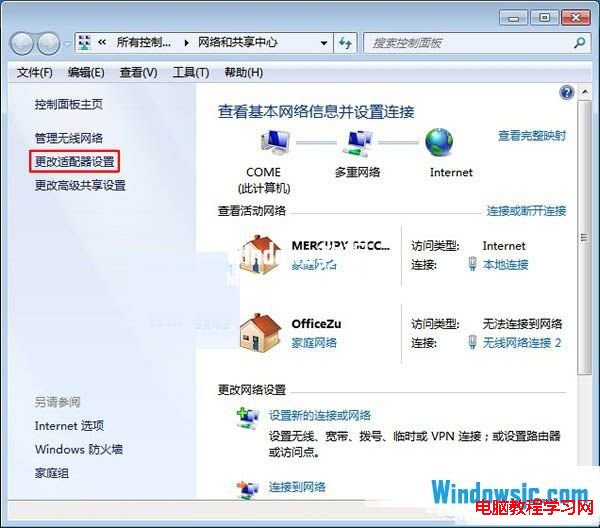
4、右鍵桌面「網路」→「內容」→「網路和共用中心」→「變更介面卡設定」。
5、可見新增「Microsoft Virtual WiFi Miniport Adapter」虛擬網卡。
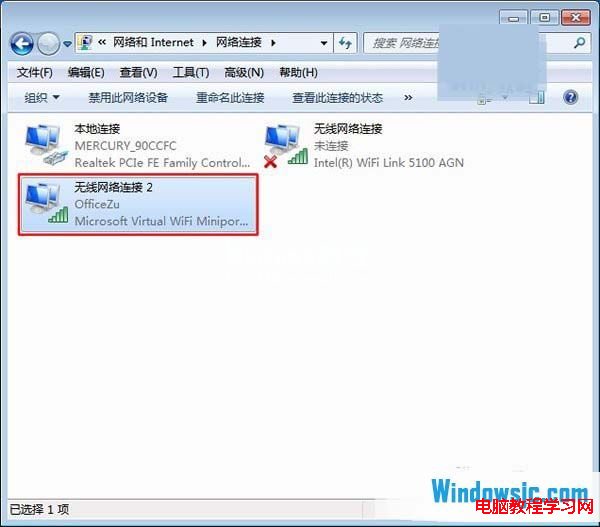
6、右鍵「區域連線」→「內容」→「共用」→ 勾選允許共用 → 家庭網路選擇虛擬網卡 (通常為「無線網路連線 2」) → 確定。
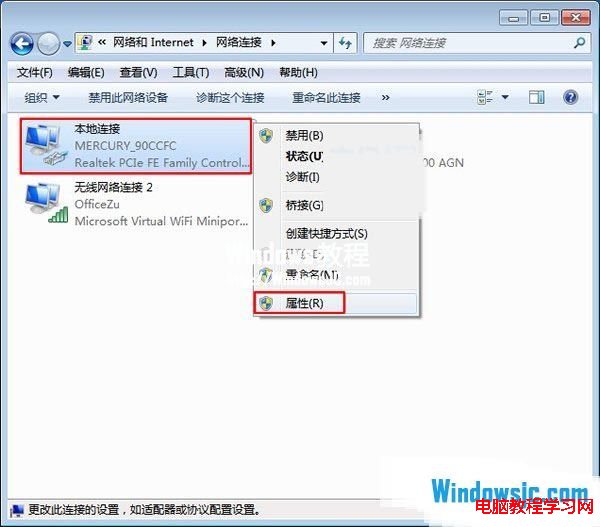
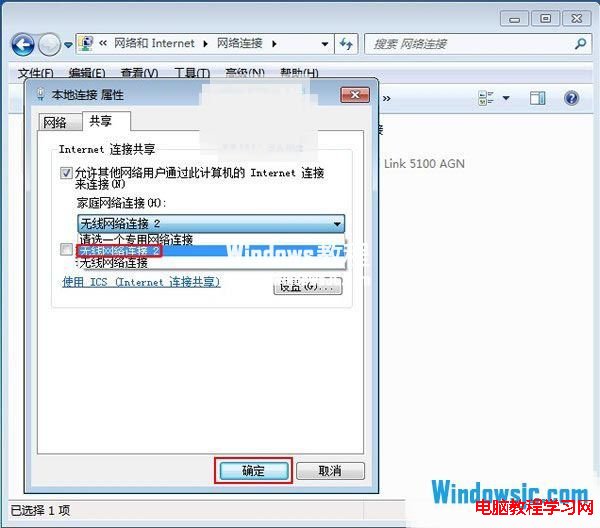
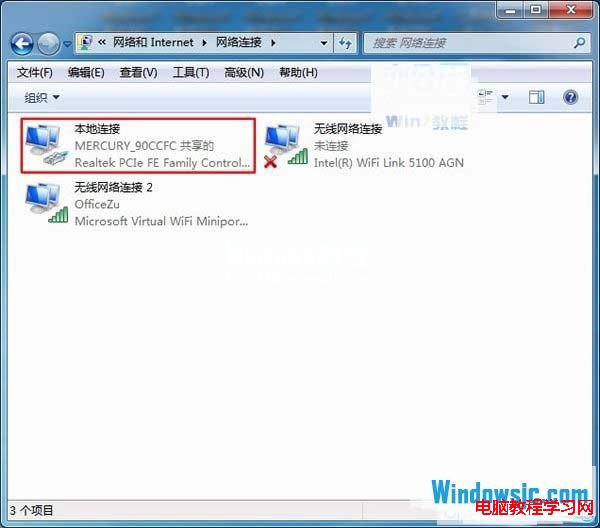
7、本地連線共用啟用成功。
8、通知區網路圖示顯示兩個連線:本地連線與建立的熱點 (OfficeZu)。
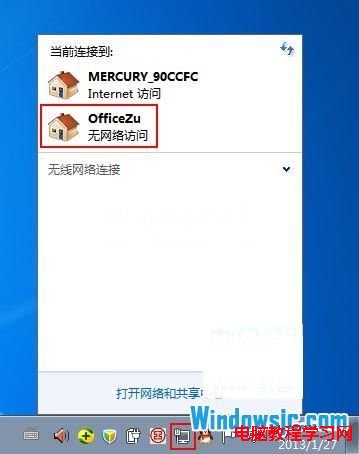
9、手機開啟 WiFi 搜尋 OfficeZu 輸入密碼連線。
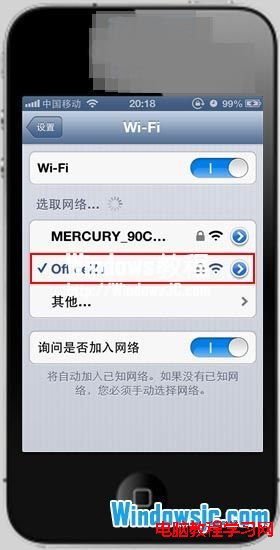
10、即可透過筆電共用上網瀏覽網頁、看影片。