製作 Windows 8 USB 開機安裝碟是最通用、乾淨的安裝方式。使用 UltraISO 寫入 ISO 映像檔至 USB,再從 USB 開機安裝。
製作開機碟
- 開啟 UltraISO → 「檔案」→「開啟」選取 Win8 ISO → 「啟動」→「寫入硬碟映像」 → 選擇 USB 隨身碟 → 寫入模式「USB-HDD+」 → 「寫入」。
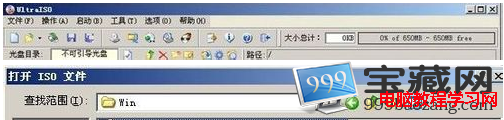
- 等待寫入完成(數分鐘),USB 即成為開機安裝碟。
安裝流程
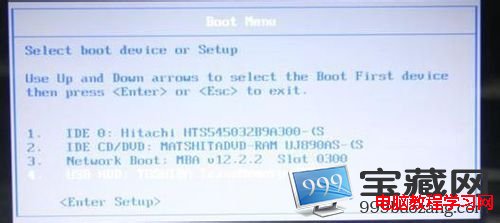
- 插入 USB,進入 BIOS 設定 USB 為第一開機順序,儲存重開機(F10)。
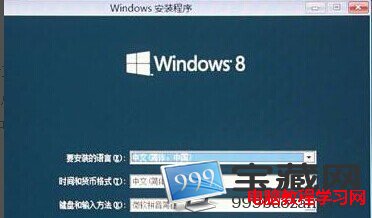
- 進入 Windows 8 安裝程式:選擇語言、時間、鍵盤 → 「立即安裝」。
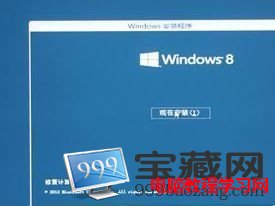
- 輸入產品金鑰 → 授權條款 → 選擇「自訂:僅安裝 Windows (進階)」。
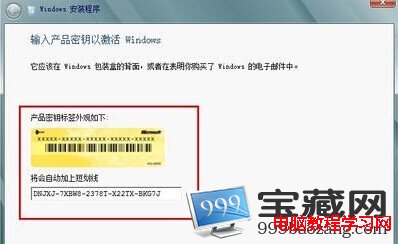
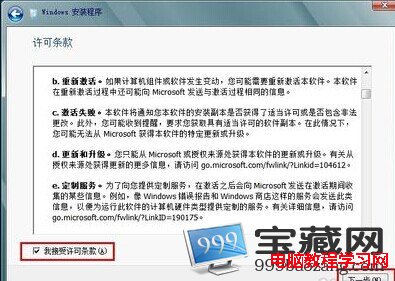
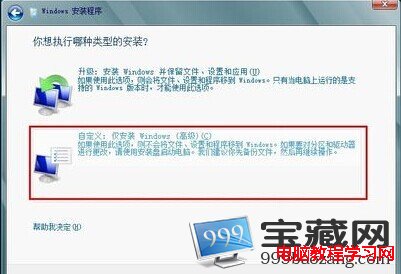
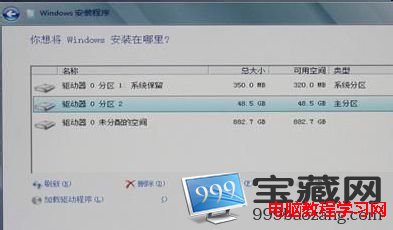
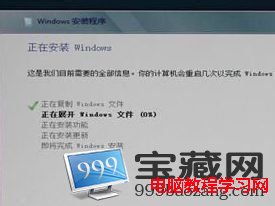
- 選擇安裝分區(建議 C:,預留 50GB 以上)→ 格式化 → 下一步,等待檔案複製、功能安裝、更新完成。
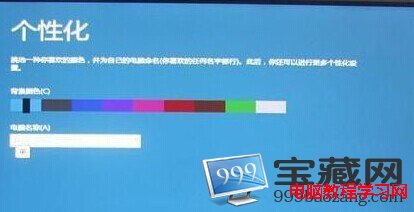
- 重開機進入設定(快速設定/自訂設定)→ 完成進入 Windows 8 桌面。
USB 安裝支援全新安裝、格式化分區、雙系統配置,是最推薦的安裝方式。安裝前請備份目標分區重要資料。