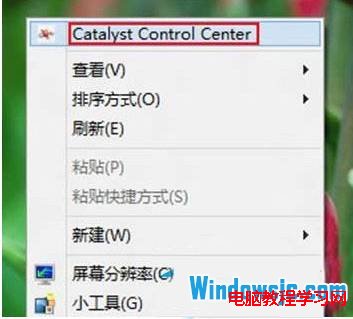
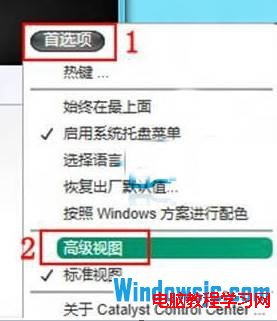
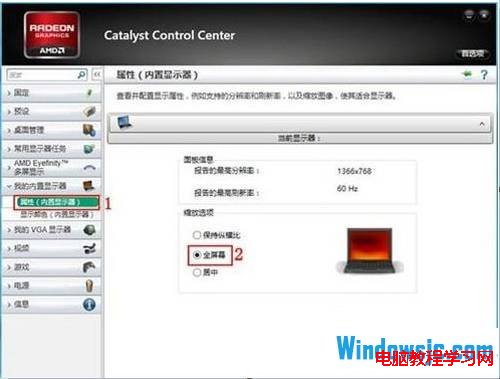
Windows 8 移除登錄 Scaling 鍵值調整螢幕縮放功能,改由顯示卡控制面板設定。ATI/AMD 顯示卡調整方法:① 桌面右鍵 → 「Catalyst Control Center」 → ② 右上角「偏好設定」 → 「進階檢視」 → ③ 左側選單「我的內建顯示器」 → 「屬性(內建顯示器)」 → ④ 縮放選項選 「全螢幕」 (預設為保持縱橫比) → ⑤ 「套用」生效。若縮放選項灰色不可選,先將解析度調整為非原生最佳解析度,設定完成後再改回最佳解析度,縮放設定將保留。
Win7 使用命令提示字元複製硬碟資料教學
解決 Windows 10 開啟 Word 畫面全黑問題:登錄檔修復預設白色背景
Win7 系統中 Unity Web Player 是什麼?可安全卸載的瀏覽器 3D 遊戲插件
Win10 9926 自動更新到 10041 版本後無法上網?以太網卡設定 10Mbps 全雙工解決
Win8 如何設定擴充顯示?Win+P 快速切換投影模式教學
Win7 快捷鍵 Ctrl+Alt+Del 無法開啟工作管理員修復方法
Windows 7 安全性功能深度解析:UAC、防火牆、備份還原三大核心防護
Win10 Build 10064 介面曝光:暗黑風格統一、Task View 圖示變白、回收站懷舊風