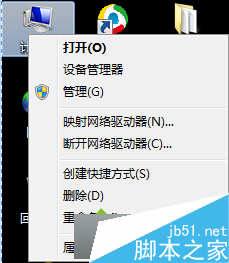
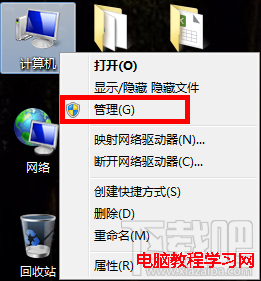
Windows 7 移除了「我的電腦」下的攝影機圖示,需透過裝置管理員找到驅動程式執行檔路徑,手動建立捷徑並放入特定資料夾,才能在「電腦」中看到攝影機圖示。
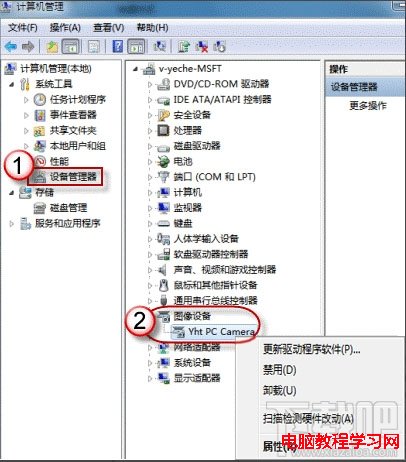
C:\Windows\System32\ 或廠商資料夾)。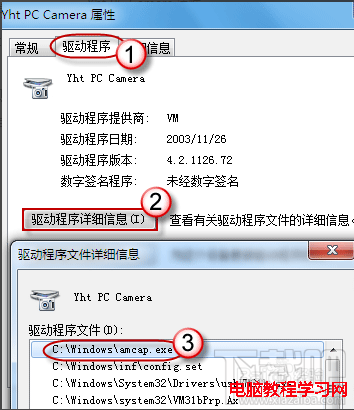
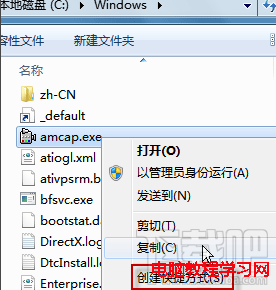
C:\Users\使用者名稱\AppData\Roaming\Microsoft\Windows\Network Shortcuts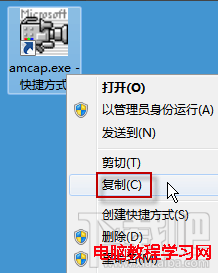
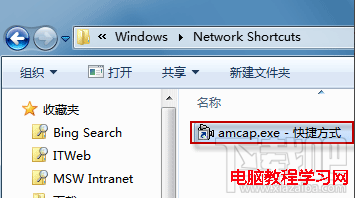
此法利用 Windows 「網路捷徑」機制,將任意執行檔掛載至「電腦」視圖,同樣適用於其他常用工具。
Windows 10 週年更新新問題:USB 攝影機無法正常運作,微軟正修復影像編碼變更導致的相容性問題
Win10 TH2 (1511) 更新後藍屏循環?SFC/DISM/SFCFix 三階修復法
Windows 7 設定預設瀏覽器:控制台預設程式六步驟完整教學
Windows Server 2008 修改伺服器名稱與 Administrator 密碼完整教學
Win8 更新失敗「正在還原變更」解決:清理啟動項淨化環境後再更新
微軟緊急下架 Win10 TH2 ISO 主因:Windows 8.1 金鑰啟動會誤變嵌入式版
Windows 10 Build 10134 自製中文 ISO 系統鏡像下載 (64 位元專業版、含 MD5/SHA1/CRC32)