升級 Windows 10 後,部分資料夾右上角出現藍色雙箭頭圖示,代表該資料夾啟用了 NTFS 壓縮或加密屬性。透過資料夾屬性→進階設定取消勾選即可移除圖示。
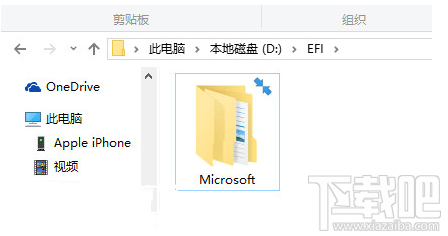
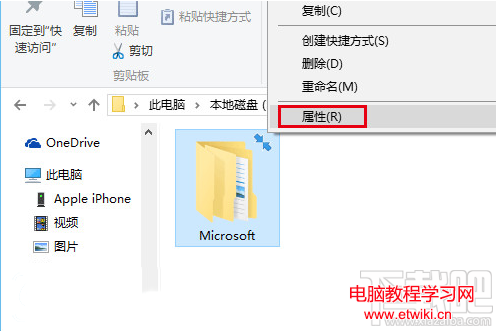
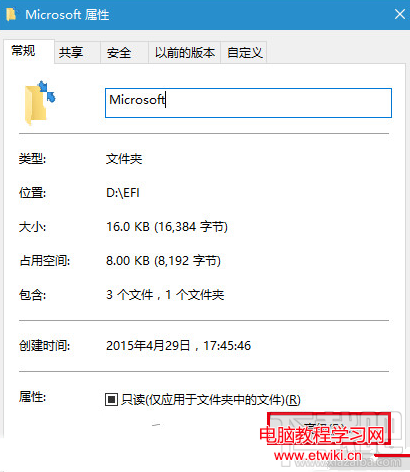
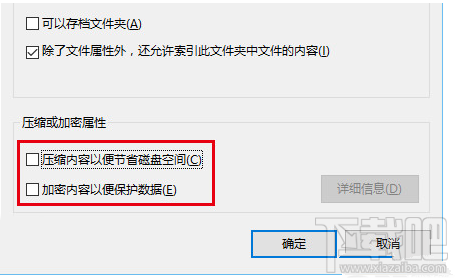
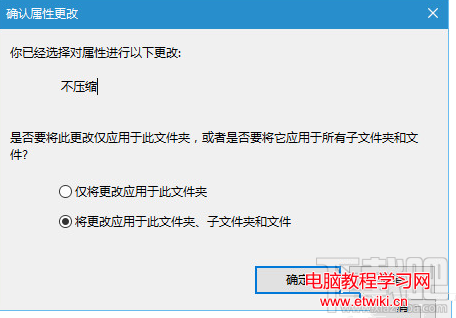
完成後藍色雙箭頭即消失,資料夾恢復正常圖示。
Windows 10 正式版移除 Internet Explorer 11 教學:透過「開啟或關閉 Windows 功能」取消勾選,但可能影響 Chrome、360 等 IE 核心瀏覽器
Win10 輸入法卸載不乾淨殘留語言列怎麼辦?控制台→語言→中文選項→刪除殘留輸入法
32 位元 vs 64 位元 Windows 深度解析:記憶體定址、效能、相容性與選擇建議
Win8.1 關閉「位置設定」保護隱私 防止 GPS 與位置資訊傳送至 Microsoft
Windows 10 10114 如何關閉開始功能表「智慧建議」(應用程式推薦)?