Win8 使用一段時間後會因安裝程式增加、暫存檔堆積而變慢。本文介紹三種清理垃圾的方法,從圖形化工具到極簡批次檔,滿足不同需求。
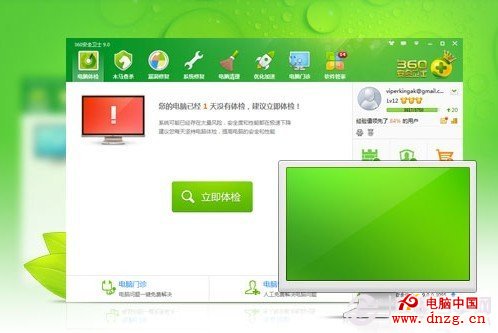
最常見、操作最簡單,掃描清理系統垃圾、登錄檔、外掛等,適合一般用戶。
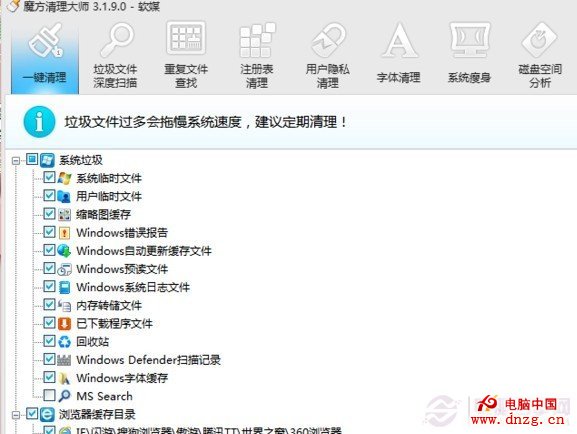
專為 Win8 設計的輕量優化工具,內建垃圾清理、啟動項管理、系統設定優化等功能,介面清爽無廣告,推薦不想裝大套安全軟體的用戶。
不想安裝任何軟體?用記事本建立 clean.bat,貼上以下指令:
@echo off
del /f /s /q %systemdrive%\*.tmp
del /f /s /q %systemdrive%\*._mp
del /f /s /q %systemdrive%\*.log
del /f /s /q %systemdrive%\*.gid
del /f /s /q %systemdrive%\*.chk
del /f /s /q %systemdrive%\*.old
del /f /s /q %windir%\*.bak
del /f /s /q %windir%\prefetch\*.*
rd /s /q %windir%\temp & md %windir%\temp
rd /s /q %systemdrive%\recycler & md %systemdrive%\recycler
echo 清理完成!
pause
以系統管理員身分執行即可快速清理常見暫存檔、預讀檔、回收筒等。雖不如專業工具全面,但勝在輕量、免安裝,適合追求極致效能的用戶。
下載連結: Win8 一鍵系統清理工具(本地下載)
盤點 Windows 10 八大核心特色:Cortana、Spartan、Universal Apps、Xbox、Surface Hub、HoloLens 等
Windows 10 關機後電源燈不滅?關閉「快速啟動」即可解決
Windows 8 開啟命令提示字元 (cmd) 並以系統管理員身分執行:三種快速方法
Windows 8 版本號演進完整時間軸:從 7650 到 Build 8011,見證開發節奏加速
Windows 8 Beta 版應用商店將開業:首階段所有應用免費,微軟測試商店機制與收集開發者回饋