Windows XP Windows 7 Windows 2003 Windows Vista Windows 綜合教學 Linux 系統教學
Windows 10 Windows 8 Windows 2008 Windows NT Windows Server 電腦軟體教學

Win 10 鎖定畫面右下角網路圖示怎麼移除?登錄表一鍵隱藏

編輯:Win8 常見問題解答

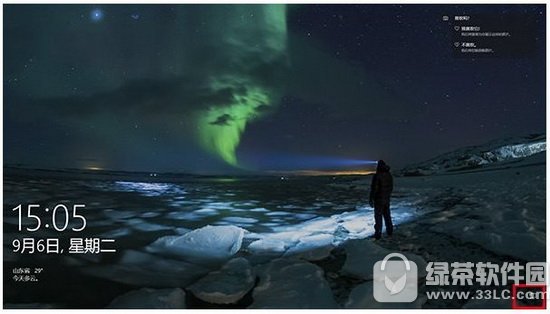
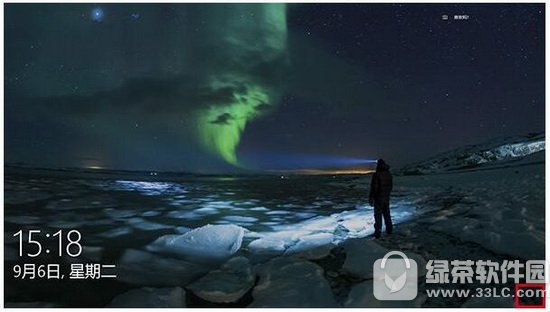
Windows 10 鎖定畫面(鎖屏介面)右下角預設會顯示網路圖示(Wi-Fi/乙太網路狀態),點擊可直接切換網路連線。若覺得多餘或為美觀想隱藏,可透過登錄表達成。注意:此設定同時會隱藏登入畫面的網路圖示。

操作步驟

  1. Win+R 輸入 regedit 開啟登錄表編輯器。
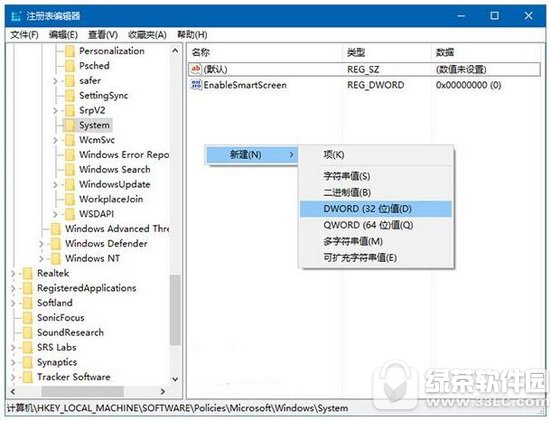
  2. 定位至:
    HKEY_LOCAL_MACHINE\SOFTWARE\Policies\Microsoft\Windows\System
    (若「System」項目不存在,請在「Windows」上右鍵新增項目命名為 System)。
  3. 在「System」項目下右鍵新增「DWORD (32 位元) 值」,命名為 DontDisplayNetworkSelectionUI。
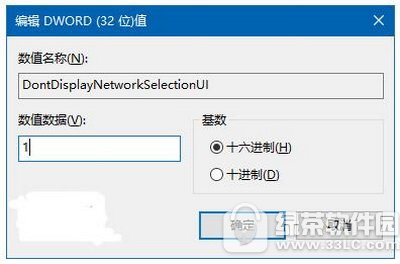
  4. 雙擊該值,將「數值資料」設為 1,按「確定」。
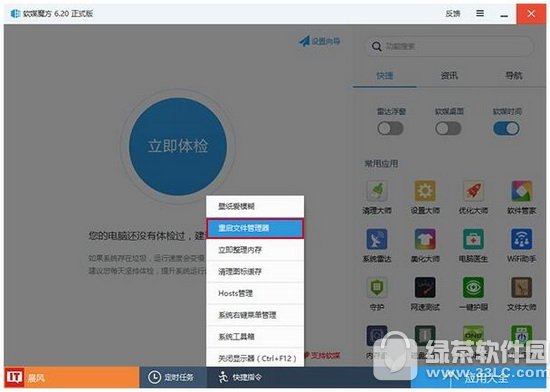
  5. 重新啟動 explorer.exe 或重新開機生效。

鎖定畫面網路圖示

建立 DontDisplayNetworkSelectionUI

設定數值為 1

重新啟動 explorer

隱藏後效果

恢復顯示

將 DontDisplayNetworkSelectionUI 數值改為 0,或直接刪除該值,重啟 explorer.exe 即可恢復預設顯示網路圖示。

適用版本

Windows 10 專業版、企業版、教育版、家用版皆適用(家用版無群組原則編輯器時改用登錄表)。

Copyright © Windows教程網 All Rights Reserved