Windows 10 捷徑預設左下角疊加小箭頭標識。若追求極簡桌面,可透過修改登錄將疊加圖示替換為透明圖示(系統保留圖示資源 ID 197 為空白),並重建圖示快取生效。提供現成批次檔內容,複製執行即可。
reg add "HKEY_LOCAL_MACHINE\SOFTWARE\Microsoft\Windows\CurrentVersion\Explorer\Shell Icons" /v 29 /d "%systemroot%\system32\imageres.dll,197" /t reg_sz /f
taskkill /f /im explorer.exe
attrib -s -r -h "%userprofile%\AppData\Local\iconcache.db"
del "%userprofile%\AppData\Local\iconcache.db" /f /q
start explorer
pause

RemoveArrow.bat(副檔名 .bat,非 .txt)。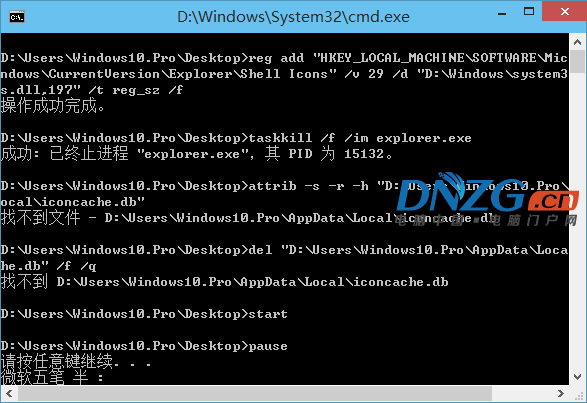
Shell Icons 值 29 對應捷徑疊加圖示。imageres.dll,197 為系統內建空白/透明圖示資源。taskkill /f /im explorer.exe 重啟殼程式讓註冊表生效。iconcache.db 強制重建圖示快取,避免舊快取覆蓋。執行以下指令(同樣存為 .bat 以管理員執行):
reg delete "HKEY_LOCAL_MACHINE\SOFTWARE\Microsoft\Windows\CurrentVersion\Explorer\Shell Icons" /v 29 /f
taskkill /f /im explorer.exe
attrib -s -r -h "%userprofile%\AppData\Local\iconcache.db"
del "%userprofile%\AppData\Local\iconcache.db" /f /q
start explorer
亦可使用第三方工具「去除捷徑小箭頭工具」圖形化操作,原理相同。