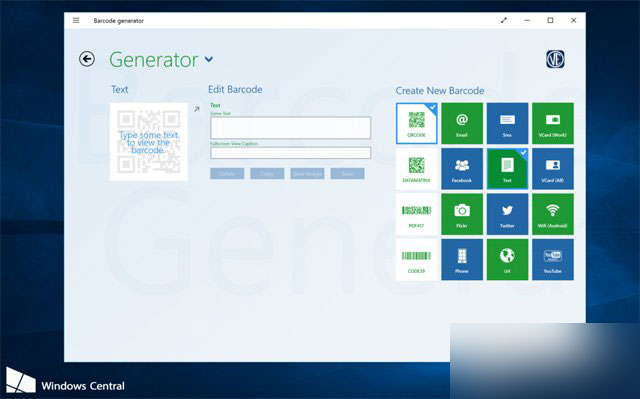
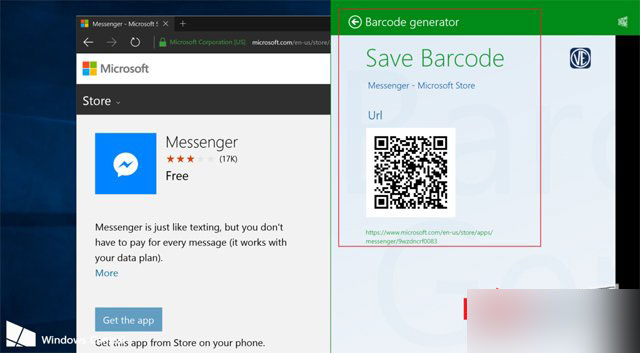
Microsoft Edge(舊版 EdgeHTML 核心)內建無 QR Code 生成功能,但可透過 Windows 10 共用合約搭配商店免費 App「Barcode Generator」實現:開啟網頁 → 點擊 Edge 右上角「共用」 → 選擇 Barcode Generator → 自動生成當前網址 QR Code 並可儲存圖片。
完整操作流程
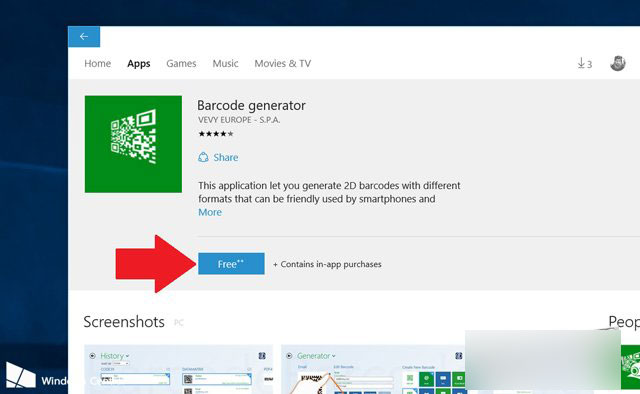
- 安裝 App:Microsoft Store 搜尋「Barcode Generator」安裝(免費、英文介面不影響使用)。
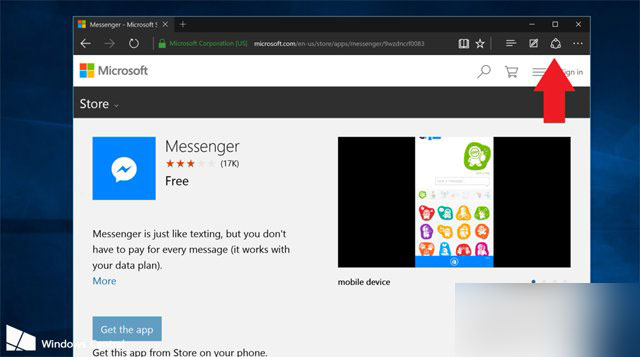
- 開啟目標網頁:在 Edge 瀏覽要分享的網址。
- 呼叫共用介面:點擊 Edge 右上角「共用」圖示(三個點相連圖標)。
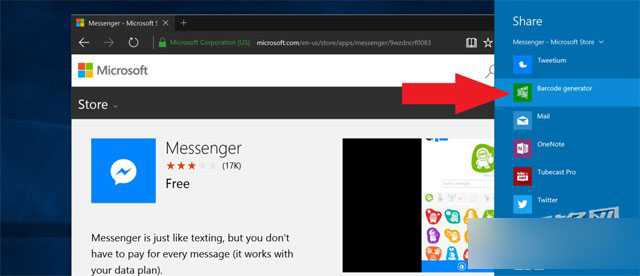
- 選擇 Barcode Generator:右側共用面板中點選該 App 圖示。
- 生成與儲存:1-3 秒後自動生成 QR Code,可點擊儲存為圖片檔。
延伸功能
- 支援生成條碼(Barcode)。
- 內建 YouTube、Facebook 等熱門網站快速生成模板。
- 未來 Edge 支援擴充功能後,將有更原生的 QR Code 擴充套件取代此曲線方案。